[SOP Guide] Fix ManyChat + n8n 10s Webhook Async Timeout

This technical breakdown contains affiliate links. If you deploy this stack using my links, I earn a commission at no extra cost to you.
Direct Answer (Fixing ManyChat 10s Webhook Timeout in n8n): ManyChat terminates external webhook requests after exactly 10 seconds, causing silent failures when calling LLMs or deep database queries. To beat this timeout, architect an asynchronous handshake: n8n's initial webhook must use the "Respond to Webhook" node to return an immediate HTTP 200 payload within 500ms (updating a subscriber field like
status: "processing"). The long-running task then executes in the background and sends the final AI response back to ManyChat via the ManyChat REST API (POST /fb/sending/sendContentor/ig/sending/sendContent), completely bypassing the 10-second limit.
In modern high-velocity marketing and sales operations, conversational AI is the frontline of user engagement. Messaging channels like Instagram DMs, Facebook Messenger, and WhatsApp Business (read our playbook on ManyChat WhatsApp B2B Lead Capture) have transformed outbound prospecting and inbound lead qualification. However, when developers attempt to bridge conversational chat interfaces with enterprise orchestration systems, they run face-first into a devastating structural bottleneck: ManyChat's strict 10-second webhook response timeout limit.
If your chat flow triggers an external webhook to execute complex operational paths—such as querying an LLM like Claude or GPT, running deep profile lookup sequences, or syncing database values across multiple pipelines—the process routinely exceeds 10 seconds. When this threshold is crossed, ManyChat immediately terminates the connection. The conversation hangs, the user experiences a broken loop, and qualified outbound pipeline velocity is lost.
To overcome this, hyper-growing SaaS operations and automation teams discard synchronous execution entirely. Instead, they build a decoupled, event-driven asynchronous queueing architecture inside n8n. By separating the ingress handshake from the background processing engine, you can execute infinite multi-stage workflows and directly push dynamic content back to the user without ever triggering a timeout. (Lead routing and chat automation are key layers of your growth infrastructure. To see how to align your entire revenue stack, check out our architectural teardown of the SaaS RevOps Automation Stack). (If you want our team of experts to design and deploy these custom systems for you, review our n8n Automation Services).
This comprehensive engineering blueprint provides the exact step-by-step methodology to implement asynchronous webhook processing, configure channel-specific dynamic payloads, and sync data directly to your CRM.
Why Synchronous Webhooks Cause ManyChat Failures
Most marketing campaigns and revenue teams structure their webhooks linearly. A user submits a query or email address in a chat window, ManyChat triggers an external HTTP block, waits for the response, and then parses the returned values to display a message.
While this direct approach works for simple math operations or static database lookups (like checking instant ticket queues or order status in our Urban Cafe case study), it fails completely under real-world enterprise workloads. Chaining modern operational pipelines incurs massive cumulative latency:
In a linear sequence, your pipeline is only as fast as its slowest link. A typical enrichment, CRM logging, and AI personalized copy-writing sequence easily totals 20 to 45 seconds. Because ManyChat terminates any external request that exceeds exactly 10 seconds, a synchronous design will inevitably crash, leaving the user with a broken experience. (To pinpoint other hidden latency bottlenecks and API vulnerabilities in your systems, claim your custom RevOps & Pipeline Audit).
The Decoupled Asynchronous n8n Architecture
To resolve the 10-second timeout, we must transition from a synchronous request-response flow to a decoupled, event-driven pattern.
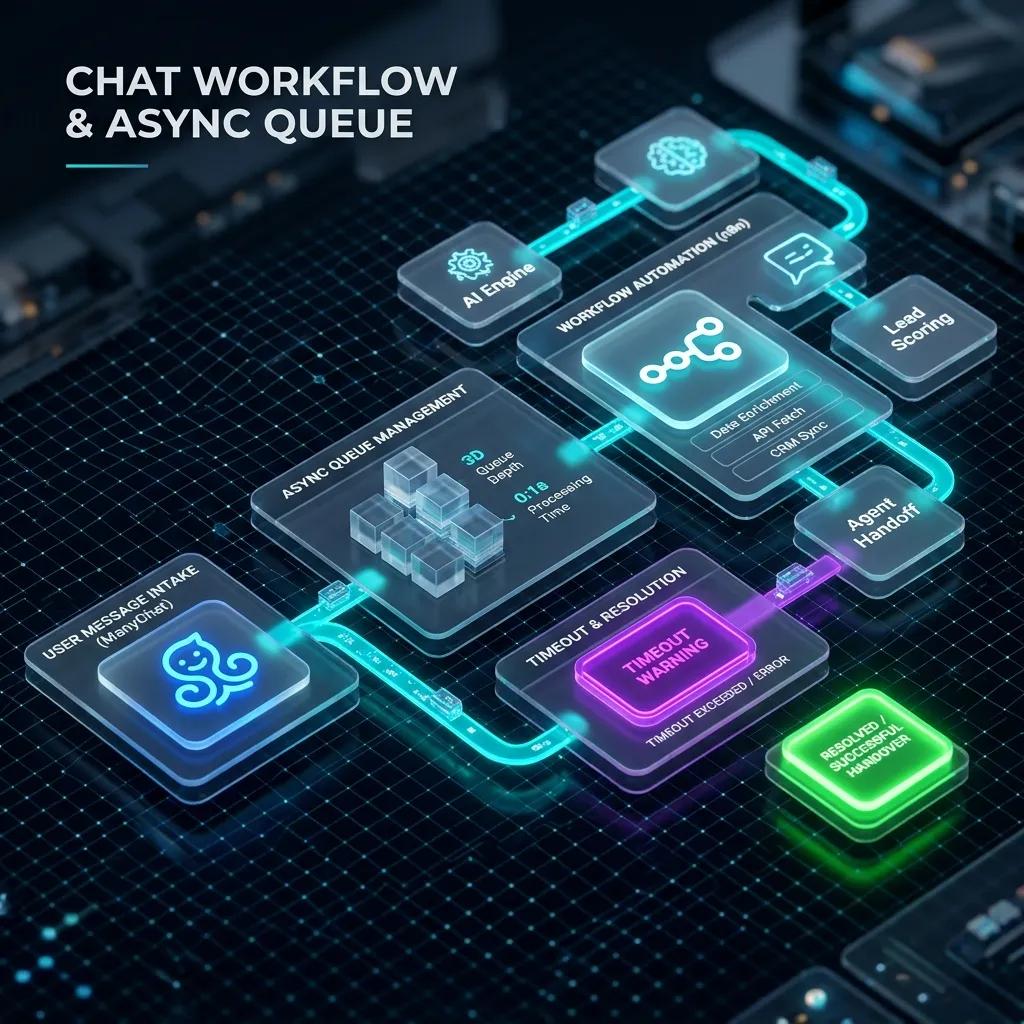
Instead of forcing ManyChat to wait for the final payload, the ingress webhook immediately responds with an HTTP 200 OK status, telling the bot that the data was successfully received. The connection is dropped, and the heavy operational processing runs in the background. Once finished, n8n uses the ManyChat API to push the final response back to the user asynchronously.
 Click to expand
The 4-Stage Decoupled Workflow:
subscriber_id, user input details, and active messaging channel. The n8n Webhook node responds instantly with a HTTP 200 OK code (completing in < 500ms).Step-by-Step Implementation Guide
Below is the step-by-step technical implementation to construct this decoupled architecture in n8n and ManyChat.
Step 1: Configure the n8n Webhook for Immediate Handshake
To bypass the timeout, the n8n Webhook Node must be configured to return an instant response rather than waiting for downstream nodes to complete execution.
POST.manychat-async-ingress.Immediate Response (or Response Code: 200). This is the critical setting. It instructs n8n to return an instant 200 OK code as soon as the incoming request is parsed, separating the execution paths.{
"name": "ManyChat Webhook Ingress",
"parameters": {
"httpMethod": "POST",
"path": "manychat-async-ingress",
"responseMode": "onReceived",
"responseData": "allEntries"
}
}
Step 2: Set Up the ManyChat Webhook Block
In your ManyChat Flow Builder, insert an External Request block at the point where the user submits their data (e.g., after capturing their email).
- Request Type:
POST - Request URL: Paste your production n8n webhook URL.
- Body: Send a clean JSON payload mapping the user's details and active channel metadata:
JSON Payload
{
  "subscriber_id": "{{user_id}}",
  "first_name": "{{first_name}}",
  "email": "{{email}}",
  "channel": "instagram",
  "user_input": "{{last_input}}"
}
Immediately following the Webhook block, create a Typing Indicator or show a placeholder response message: "Got it! Running our analysis engine now. This takes about 15-20 seconds. Keep an eye on your inbox—I'll send the results directly here!"
essential Step: Do not link any subsequent messaging blocks to this path in ManyChat. The synchronous flow path terminates here.
Dynamic Delivery Patterns: Field Updates vs. sendFlow API
Once the background n8n worker finishes executing the high-latency tasks, how do we send the final message back? There are two distinct patterns depending on your system requirements.
Method A: The Event-Driven Custom Field Pattern (Recommended)
This is the most stable and visual method. Instead of pushing direct message code, n8n updates a ManyChat Custom User Field containing the final AI-generated text. This change triggers an automated Delivery Flow inside ManyChat.
 Click to expand
Detailed Workflow Steps:
ai_analysis_result) of type Text.- Trigger: Set the trigger to "Custom field value changed" and select
ai_analysis_result. - Action: Select "Start another Flow" and point it to a dedicated "Response Delivery Flow".
{{ai_analysis_result}}.- Endpoint:
POST https://api.manychat.com/fb/subscriber/setCustomField - Headers:
Authorization: Bearer YOUR_MANYCHAT_API_KEYContent-Type: application/json
- JSON Body:
JSON Payload
{
  "subscriber_id": "={{ $json.subscriber_id }}",
  "field_id": 9876543, // The ID of your ai_analysis_result custom field
  "field_value": "={{ $json.final_ai_text }}"
}
As soon as n8n writes the final text to the custom field, ManyChat triggers the rule and delivers the formatted results directly to the user's chat screen. This approach separates the raw text data from the styling and conversation rules, making it incredibly clean and maintainable.
Method B: Direct Messaging via sendContent API
If you need to push rich, dynamic UI elements (like galleries, horizontal cards, or multiple URL buttons) directly from code, you can use ManyChat's Dynamic Block (v2) sendContent API.
ManyChat routes outbound messaging actions through channel-specific endpoints. You must call the endpoint corresponding to the channel the user arrived from:
- Instagram Direct:
https://api.manychat.com/ig/sending/sendContent - Facebook Messenger:
https://api.manychat.com/fb/sending/sendContent - WhatsApp Business:
https://api.manychat.com/wa/sending/sendContent - Telegram:
https://api.manychat.com/tg/sending/sendContent
Production-Grade API Payload Structures:
1. Dynamic Text with Quick-Action Buttons
This payload pushes rich text along with clickable buttons directly back to the active channel.
{
  "subscriber_id": 12345678,
  "data": {
    "version": "v2",
    "content": {
      "messages": [
        {
          "type": "text",
          "text": "Hi! I've updated your profile and enriched your details. Here are your custom resources...",
          "buttons": [
            {
              "type": "url",
              "caption": "Open Hubspot",
              "url": "https://app.hubspot.com/contacts/1234"
            }
          ]
        }
      ]
    }
  }
}
2. Enriched Lead Profile Card (Gallery Mode)
Perfect for presenting structured information (like company headcounts or funding updates) using structured visual elements.
{
  "subscriber_id": 12345678,
  "data": {
    "version": "v2",
    "content": {
      "messages": [
        {
          "type": "cards",
          "elements": [
            {
              "title": "Lead Profile Enriched",
              "subtitle": "Role: Founder | Headcount: 50-200",
              "image_url": "https://images.unsplash.com/photo-1460925895917-afdab827c52f",
              "action_url": "https://whoisalfaz.me/blog",
              "buttons": [
                {
                  "type": "url",
                  "caption": "Schedule Demo",
                  "url": "https://whoisalfaz.me/contact/"
                }
              ]
            }
          ],
          "image_aspect_ratio": "horizontal"
        }
      ]
    }
  }
}
Syncing Enriched Lead Data to Brevo CRM
To maximize lead conversion and outbound sequence performance, any lead captured through the async ManyChat flow should be synced directly to Brevo CRM in the background.
By writing to the CRM in the background, you keep the conversational flow extremely fast and fluid, while your sales database gets enriched asynchronously with zero chance of timeout.
The Background Brevo CRM n8n Integration:
graph LR
    A[ManyChat Ingress] -->|200 OK Handshake| B[n8n Queue Router]
    B -->|Heavy Task Path| C[Apollo Enrichment Node]
    C -->|Complete Metadata| D[Brevo CRM Sync Node]
    D -->|Write Success| E[ManyChat setCustomField Push]
To configure the CRM write logic inside n8n:
Contact and Operation to Create or Update.={{ $json.email }}.| ManyChat Custom Field | Apollo Enriched Parameter | Brevo CRM Attribute |
|---|---|---|
| {{email}} | ||
| {{company_name}} | organization.name | COMPANY_NAME |
| {{job_title}} | title | JOB_TITLE |
| {{company_size}} | organization.employees | COMPANY_SIZE |
(If you are also interested in building standalone AI interfaces that hook directly into custom logic pipelines, check out our tutorial on giving your n8n AI Agent hands with custom tools or explore our blueprint for building a fully automated n8n AI receptionist).
Critical Channel and Delivery Constraints
When operating conversational AI messaging systems in production, your architectural design must adhere strictly to messaging policies and API guidelines to prevent system bans:
1. The 24-Hour Interaction Rule
For Facebook Messenger and Instagram Direct, you cannot trigger the sendContent or sendFlow APIs if the user has not interacted with your page in the last 24 hours. Because the async n8n background execution completes in under a minute, you are well within the active 24-hour window. However, if you build delayed campaigns, you must pass a recognized Facebook message_tag (like CONFIRMED_EVENT_UPDATE or ACCOUNT_UPDATE) inside your payload.
2. WhatsApp Pre-Approved Templates
WhatsApp enforces strict anti-spam controls. You cannot push arbitrary dynamic JSON text block cards to a user via /wa/sending/sendContent to open a conversation. To send a message outside the 24-hour customer care window, you must utilize a pre-approved, structured WhatsApp Template. Configure the template in Meta Business Manager and trigger it in n8n by updating fields or starting a WhatsApp-approved ManyChat flow.
3. n8n Node Concurrency & Queue Scaling
Under high traffic (e.g., a popular Instagram story campaign generating thousands of concurrent DMs), n8n's active execution threads can saturate, causing background tasks to delay. To prevent this:
- Set up a RabbitMQ or Redis-based queue inside n8n to throttle active executions.
- Set the n8n Webhook node settings to
Response Mode: Immediately. This releases the HTTP connection back to ManyChat in milliseconds, shielding the chat bot from any local database congestion or API slowdowns.
By decoupling the ingestion from the execution, utilizing secure setCustomField API updates, and syncing contact records asynchronously to your CRM, you transform ManyChat from a simple chat script into a highly scalable, enterprise-grade conversational engine that operates 24/7. (To take your outbound data pipelines even further, check out our comprehensive guide on n8n data privacy and security protocol). (To map out a complete growth funnel, review our strategy session and lock in a plan on RevOps & Pipeline Strategy).
Frequently Asked Questions
What happens if an n8n webhook takes longer than 10 seconds in ManyChat?
If your webhook does not respond within ManyChat's strict 10-second window, ManyChat aborts the HTTP request, logs an external request timeout, and drops the subscriber out of the automated flow. To prevent dropped conversations, always use an asynchronous architecture where n8n returns an immediate 200 OK handshake within 200ms before processing intensive LLM or CRM logic in the background.
How do you handle Meta's 24-hour messaging window in async n8n flows?
Meta requires all promotional and standard conversational messages to occur within a 24-hour window from the user's last inbound interaction. Because asynchronous n8n workflows usually finish within 5 to 60 seconds, they easily operate within this window. For updates beyond 24 hours, you must use pre-approved WhatsApp message templates or Meta Utility/Event Update message tags.
Why does ManyChat enforce a strict 10-second webhook timeout?
ManyChat limits synchronous External Request steps to 10 seconds to maintain responsive chatbot interfaces on Meta platforms (Instagram, Messenger, WhatsApp). If a remote server fails to return an HTTP response within 10 seconds, ManyChat drops the connection and routes the subscriber down the default fallback path.
How does the asynchronous callback send messages back to the subscriber?
Once the n8n background execution (LLM generation, vector search, or CRM enrichment) completes, an n8n HTTP Request node makes a POST request to the ManyChat REST API (https://api.manychat.com/fb/sending/sendContent or /ig/sending/sendContent) using the subscriber's subscriber_id. This delivers dynamic text, cards, or audio files directly into the active chat session.
Do asynchronous webhooks consume additional ManyChat API rate limits?
The ManyChat REST API allows up to 25 requests per second per account. For high-volume enterprise stores handling hundreds of concurrent inquiries, an n8n Redis queue or RabbitMQ worker buffers outbound message payloads, preventing HTTP 429 throttling while preserving instant message delivery.
Core Deployment Stack
To build this exact architecture in production, you will need the core infrastructure. I strictly use and recommend the following enterprise-grade platforms.
ManyChat
The #1 conversational marketing platform for Instagram, Facebook, and WhatsApp.
n8n Cloud
The most powerful fair-code automation platform. Get 20% off your first year on any paid plan.
Brevo (formerly Sendinblue)
Enterprise-grade email API and marketing automation. Excellent SMTP for n8n.
Complementary RevOps Toolchain
Vultr High-Performance Cloud
Deploy self-hosted vector databases & AI infrastructure worldwide. Get $300 in free credit.
Pinecone Vector Database
The vector database for building AI applications. Essential for RAG architectures.
Qdrant Cloud
Rust-native vector search engine for the next generation of AI. Fast, scalable, and memory-efficient.
Ready to automate your agency?
Skip the manual grunt work. Let's build a custom system that runs your business on autopilot 24/7.