Build a Serverless API with n8n (Kill Your Lambda Functions) | Alfaz Mahmud Rizve

By Alfaz Mahmud Rizve | RevOps & Full Stack Automation Architect at whoisalfaz.me
TL;DR: You can build a fully functional backend API with n8n by combining the Webhook node (for receiving requests) with the Respond to Webhook node (for returning structured JSON responses). This enables synchronous request/response cycles — the same model used by Node.js/Express servers — without writing backend code or provisioning infrastructure. You can secure it with header-based API key authentication and test it instantly with curl or Postman.
Welcome back to Day 24 of the 30 Days of n8n & Automation series here on whoisalfaz.me.
We have spent the last three weeks building automations that run quietly in the background. We built Automated Client Reports (Day 22) to handle analytics delivery, constructed a Global Error Watchtower (Day 23) to monitor system health, and deployed AI Content Researchers (Day 15).
These workflows all share one trait: they are triggered by scheduled events or database row changes.
Today, we flip the script. We turn n8n from a passive listener into an active Backend Server.
If you are a developer or a technical founder, you likely have a collection of "micro-scripts" running on Vercel, Heroku, or AWS Lambda just to handle simple backend tasks like:
- Verifying a user's license key.
- Handling a contact form submission.
- Enriching an email address via a third-party API.
- Proxying a request to OpenAI to keep your API key server-side.
Maintaining those deployments is a headache. You manage dependencies, versioned runtimes, npm install nightmares, Nginx configurations, and cold-start latency. None of this is your core business.
In this guide, I will show you how to build an API with n8n. We will create a workflow that acts exactly like a Node.js/Express server — it listens for a POST request, executes complex logic against a database, and sends a structured JSON response back to your frontend — all without writing a single line of server-side code.
The Architecture: n8n as a Backend
Most people think of n8n webhooks as one-directional "catch hooks" — buckets that passively receive data from Stripe or Typeform and then run a job asynchronously. The connection fires inbound and that is the end of it.
But n8n has a capability that most no-code automation tools lack: Synchronous Execution.
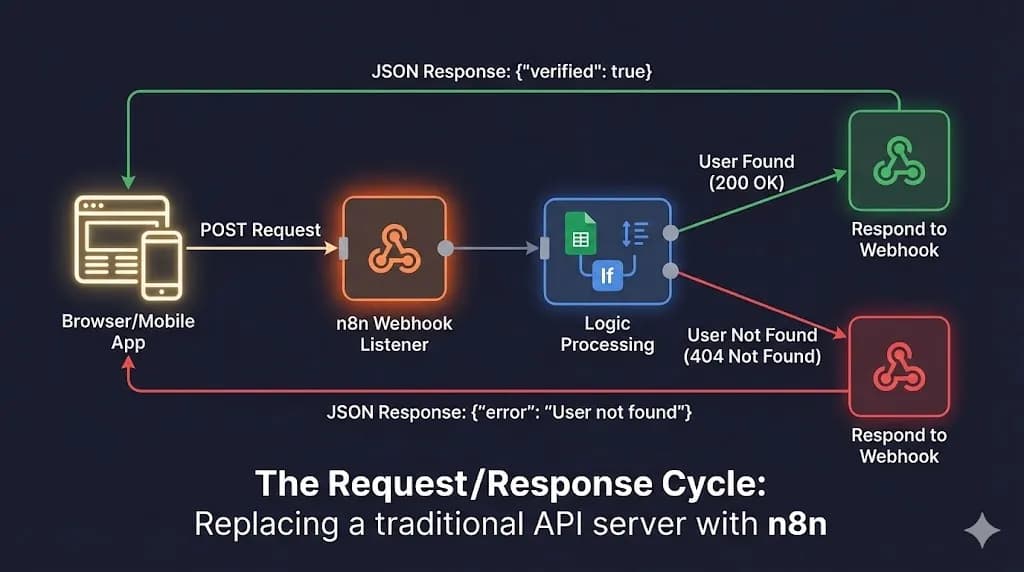
Using the Webhook node combined with the Respond to Webhook node, you can hold the HTTP connection open while n8n runs your complete logical pipeline, and then return a structured answer in the same request/response cycle. This is exactly how REST APIs work.
The Microservice Stack We Will Build
To demonstrate this, we are building a User Verification API — a common real-world scenario where a frontend application needs to verify if a user has an active license before granting them access to premium content.
The complete data flow will be:
POST request with { "email": "[email protected]" } to your n8n webhook URL.plan: "premium".{ "verified": true } (200 OK) or { "verified": false } (404 Not Found) response in milliseconds.This entire cycle is synchronous and blocking, which means the client waits for the response — exactly like calling any standard REST API endpoint.
 Click to expand
Step 1: The Webhook Listener (The Entry Point)
To build an API with n8n, you always start with the Webhook node. This is your server's front door.
POST.verify-user. This becomes part of your URL: https://n8n.your-domain.com/webhook/verify-user.None for now — we will lock this down in Step 4.Understanding Test vs. Production URLs
n8n provides two distinct webhook URLs:
- Test URL: Only active when you have the workflow editor open and click "Listen for Test Event." The connection stays open for 120 seconds, perfect for debugging logic.
- Production URL: Always active when the workflow is activated. Runs in the background even when you are not in the editor.
Start with the Test URL during development, then switch to the Production URL when you activate the workflow for live use.
Step 2: The Backend Logic (The Processor)
Now that we have the entry point configured, we need to process the incoming request data. In a traditional Node.js Express application, you would write a raw SQL query at this stage. In n8n, we use connected nodes.
Your frontend sends this JSON body when calling the API:
{
  "email": "[email protected]"
}
2.1 Connect to the Database
We will use Google Sheets as our user database for simplicity (though this works identically with Postgres, Supabase, Airtable, or a MySQL database):
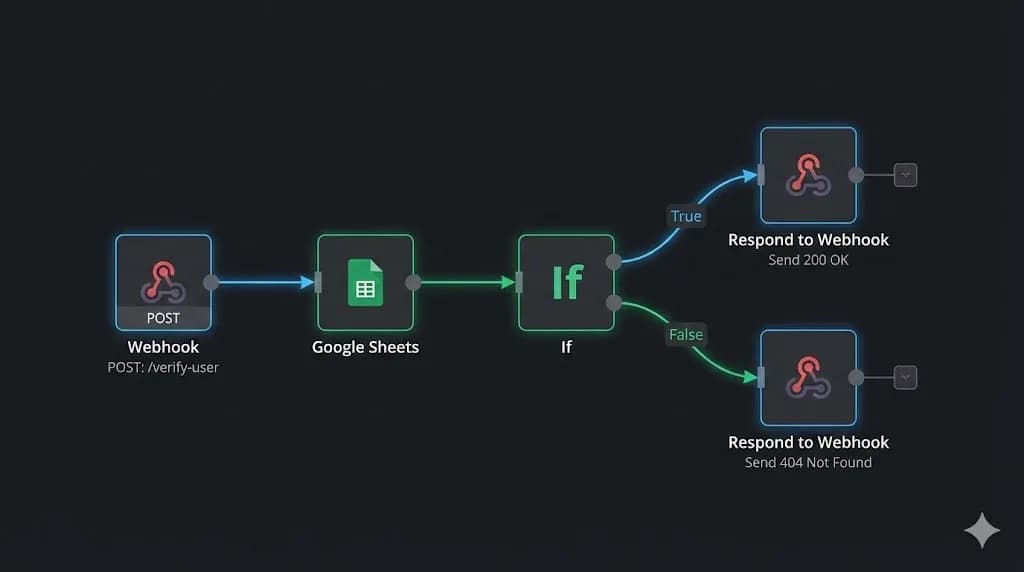
Email column.{{ $json.body.email }} to dynamically reference the email passed by the incoming request.This will return the entire matching row for the user, including any metadata like their subscription plan and account status.
2.2 Logic Branching: The IF Node
Now we decide what to do based on the database result. Add an IF node connected to the Google Sheets output:
- Condition:
{{ $json.Plan }}equalspremium - True path → User is verified (proceed to success response)
- False path → User not found or not a premium subscriber (proceed to error response)
This effectively mimics the SQL pattern SELECT * FROM users WHERE email = ? AND plan = 'premium' but using entirely visual, no-code logic.
Step 3: The Response (The Most Important Step)
This is where every incomplete n8n webhook guide fails. If you stop at Step 2, your API client — the browser or the mobile app — will spin indefinitely and eventually time out with a 502 Bad Gateway error, because n8n never told the client "I am done."
You must use the Respond to Webhook node to close the connection loop properly.
Path A: User Found (Status 200 OK)
Connect the "True" output branch of the IF node to a Respond to Webhook node:
- Respond With: JSON
- Response Body:
{
  "status": "success",
  "verified": true,
  "user_id": "{{ $json.id }}",
  "name": "{{ $json.First_Name }}",
  "message": "Welcome back, {{ $json.First_Name }}!"
}
- Response Code:
200
Path B: User Not Found (Status 404 Not Found)
Connect the "False" output branch to a second Respond to Webhook node:
- Respond With: JSON
- Response Body:
{
  "status": "error",
  "verified": false,
  "message": "User not found. Please contact support or create an account."
}
- Response Code:
404
Why HTTP Status Codes Matter
Using proper status codes — 200 versus 401 versus 404 — allows your frontend developers to handle errors with clean conditional logic, not string-parsing hacks. If the frontend receives a 200, it redirects to the premium dashboard. If it receives a 404, it automatically renders a "Sign Up" banner. This level of precision is the difference between a toy webhook and a production-grade API.
 Click to expand
Step 4: Securing Your API (Header Authentication)
An unsecured public webhook is a resource liability. Anyone who discovers your URL can hammer your n8n instance with requests, run up your execution count, and potentially extract user data.
For internal tools and agency APIs, we use Header Authentication — the same pattern used by Stripe, OpenAI, and every serious REST API in production.
x-api-key (this is the header name your clients must send).sk_prod_8293482394a7b9c2d1e5f.Now, any request sent to your URL without the correct x-api-key header will be rejected with a 403 Forbidden error immediately — before the workflow even begins executing. This protects both your data and your server resources.
[!TIP] Infrastructure note: If you are running multiple n8n APIs under load, webhook response latency is directly impacted by server CPU. I run my production n8n instance on Vultr High Frequency Compute, which delivers consistent low-latency responses under concurrent API load compared to shared or burstable instances.
Step 5: Testing Your API
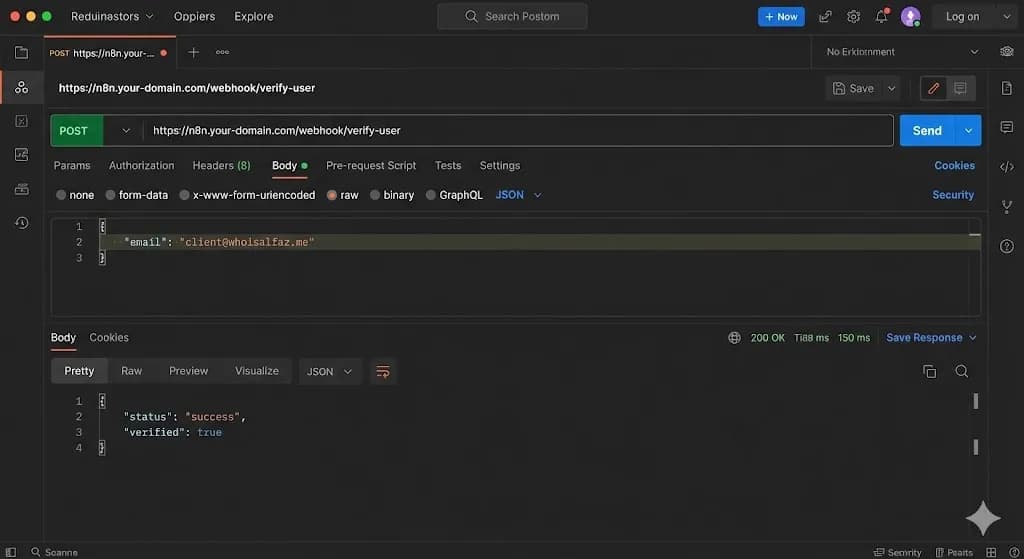
You do not need a full frontend application to test an API. Use your terminal with curl or a dedicated tool like Postman.
curl -X POST https://n8n.your-domain.com/webhook/verify-user \
  -H "Content-Type: application/json" \
  -H "x-api-key: sk_prod_8293482394a7b9c2d1e5f" \
  -d '{"email": "[email protected]"}'
A successful response will immediately print a structured JSON object to your terminal:
{
  "status": "success",
  "verified": true,
  "name": "Alfaz",
  "message": "Welcome back, Alfaz!"
}
You have just deployed a serverless API endpoint without provisioning a server, configuring Nginx, writing a Dockerfile, or touching a single line of backend code.
 Click to expand
Real-World Use Cases for n8n APIs
Now that you know the core pattern, here are three high-value applications you can build immediately:
1. The OpenAI Proxy (Security & Cost Savings)
Instead of embedding your OpenAI API key in your frontend JavaScript bundle (where it is publicly visible in the browser DevTools), route all AI calls through your n8n API. Your frontend sends the user's prompt to n8n, n8n calls OpenAI securely on the server side, and n8n returns the completion. Your API key is never exposed.
2. On-Demand PDF Generation
Remember the Client Reporting engine from Day 22? Turn it into an API. A dashboard widget sends POST /generate-report { "client_id": "123" } — n8n fetches the GA4 data, builds the HTML, renders the PDF, and streams it back directly in the response. Instant, on-demand reports.
3. The Smart Contact Form
Replace Typeform ($50/month) with a plain HTML form. The form submits to your n8n API, which saves the submission to Airtable, checks if the email belongs to an existing VIP client, and returns a personalized confirmation message like "Thanks! We'll call you in 5 minutes." Dynamic behavior without a paid SaaS layer.
Conclusion: The Full-Stack Automation Engineer
n8n is not just an automation tool — it is a visual backend builder. By mastering the Webhook + Respond to Webhook pattern, you blur the line between no-code automation and full-stack development.
You can now deploy micro-services in minutes that would take hours to scaffold and deploy manually. And because the Global Error Watchtower from Day 23 is already pointing at these workflows, your new APIs are monitored 24/7 from the moment they go live.
What is Next? Now that we have a working API, we need something intelligent to call it. Tomorrow, on Day 25, we enter the world of n8n AI Agents with Tools. I will show you how to build an AI agent that can reason about which API to call, construct the payload dynamically, and return an intelligent answer to end users.
See you in the workflow editor.
Follow the full series: 30 Days of n8n & Automation
About the Author
Alfaz Mahmud Rizve is a RevOps Engineer and Automation Architect helping SaaS founders and scaling agencies build self-healing, autonomous revenue infrastructure. Explore his work at whoisalfaz.me.
In this Article
Ready to automate your agency?
Skip the manual grunt work. Let's build a custom system that runs your business on autopilot 24/7.