Website Uptime Monitoring with n8n (Free Alert System)

This technical breakdown contains affiliate links. If you deploy this stack using my links, I earn a commission at no extra cost to you.
By Alfaz Mahmud Rizve | RevOps & Full Stack Automation Architect at whoisalfaz.me
Welcome back to Day 19 of 30 Days of n8n & Automation.
In Day 17 we hardened your systems against crashes. In Day 18 we locked them down against data leaks. Today we talk about the metric that directly impacts your bank account: Velocity.
If you run an automation agency or build SaaS backends, speed is your profit margin.
- A workflow that takes 4 hours at $500 = $125/hr
- The same workflow built in 45 minutes = $666/hr
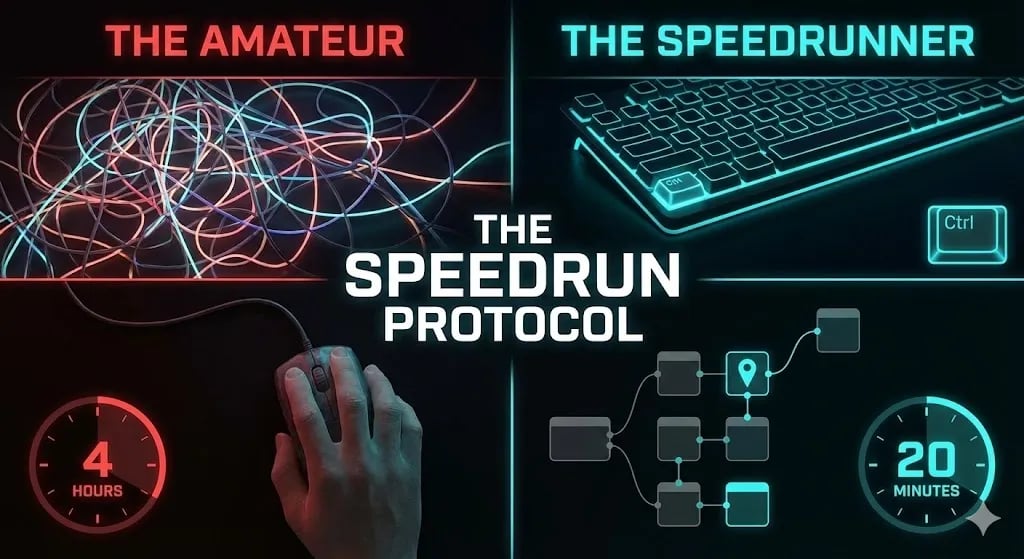
The difference is not talent. It is technique. Most beginners treat n8n like a drag-and-drop toy. They drag every node. They manually type every variable. They wait for webhooks to fire live. That is the amateur path.
Today I am sharing the Speedrun Protocol — the exact n8n tips and tricks I use inside my agency to build complex, enterprise-grade systems in a fraction of the time.
Phase 1: The "No-Mouse" Philosophy (Keyboard Shortcuts)
 Click to expand
The mouse is slow. Every time you move your hand from the keyboard to find the node menu, scroll, and drag, you lose 3-5 seconds. Across a 50-node workflow, that is 20 minutes of pure friction.
The Core Speedrun Shortcuts
| Shortcut | Action | When to Use |
|---|---|---|
Ctrl + D | Duplicate Node | Never configure a node twice. Set up your HTTP Request with auth headers once, then duplicate and change the URL. |
Ctrl + Click | Multi-Select | Move entire logic blocks across the canvas in one drag instead of repositioning nodes one by one. |
Shift + Drag | Box Select | Delete or move entire workflow sections. Draw a box around 20 nodes and hit Delete. Instant cleanup. |
Ctrl + Space | Auto-Complete in Expressions | Inside a {{ }} expression, press this to see a dropdown of all available JSON variables. Stop guessing paths. |
/ or Tab | Quick Node Search | Press /, type "Set", hit Enter. Faster than scrolling the sidebar by 10x. |
Build muscle memory for these five before anything else. After two days of deliberate practice, using the mouse menu will feel physically painful.
Phase 2: The "Time Machine" — Pin Data
 Click to expand
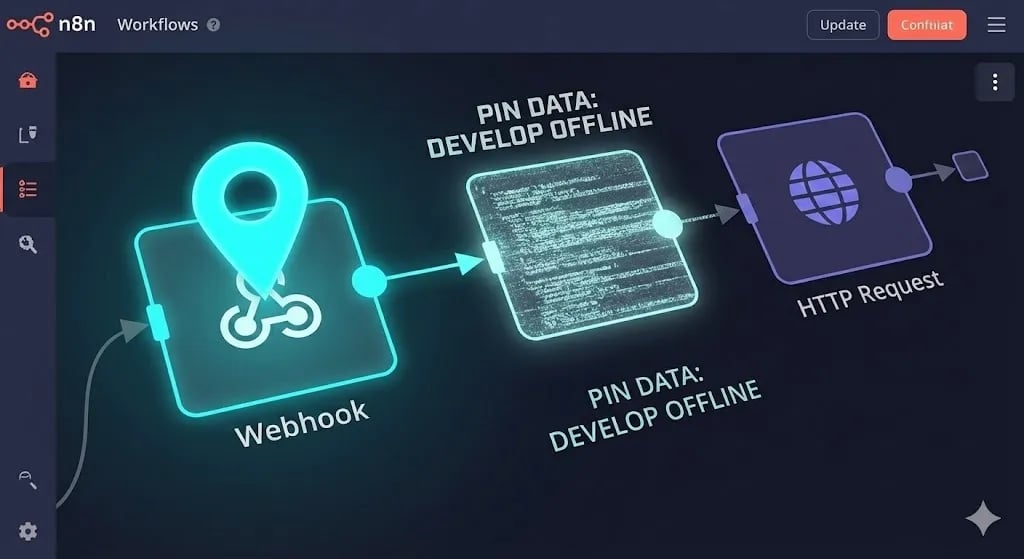
This is the single biggest time drain for beginners, and most don't even realize it.
The scenario: You are building a lead pipeline. You need to test if your Google Sheets node writes the data correctly.
- Amateur approach: Open a tab, fill the form, submit, wait for the webhook to fire, check n8n, see it failed, fix the node, go back and fill the form again. Repeat 8 times.
- Result: 50% of your build time is spent filling out your own test forms.
How Pin Data Works
That pinned response now fires instantly every time you click "Execute Node." You can iterate on downstream logic — changing the Sheets node, adding filters, testing HTTP requests — without triggering a live webhook again.
Advanced use: Edit the pinned data manually. Need to test what happens when a user submits a duplicate email? Open the pinned data, change the email field to one already in your CRM, and test. No real user required. This is how you build airtight edge-case handling without burning API calls.
[!TIP] Affiliate resource: Want a hosted n8n environment with better debugging tools? Check out n8n Cloud — it comes with built-in execution history and a visual debugger that pairs perfectly with Pin Data.
Phase 3: The JSON Teleport — Copy-Paste Workflows
Here is something most n8n users do not realize: nodes are just JSON.
When you select five nodes and press Ctrl+C, you have copied a raw JSON string to your clipboard. That means you can:
The Agency Snippet Library Strategy
At my agency, we maintain a "Core Snippets" document containing pre-built, battle-tested logic blocks:
- The Sentinel — Our standard Error Handler with Slack alerting (from Day 17)
- The Data Sanitizer — Phone number and email normalization pre-mapped to our CRM schema
- The Privacy Layer — Ghost Mode configuration with AES-encrypted credential calls (from Day 18)
- The Audit Logger — Structured logging to Google Sheets with timestamps and execution IDs
We never build these blocks from scratch. We teleport them. Every new client workflow starts at 30% completion before we write a single node.
Phase 4: Drag-and-Drop Variable Mapping
Typing variables manually is a reliability hazard. One character difference—a capital letter, an underscore—breaks the entire automation silently.
- Typing
{{ $json.body["First Name"] }}→ Error (case-sensitive) - Typing
{{ $json.body.firstName }}→ Error (key doesn't exist in that schema)
The Drag Trick
In the left panel of any n8n node, n8n displays all incoming JSON fields. You can drag any field directly into the value input instead of typing the path.
Two concrete advantages:
- Zero typos — n8n generates the syntactically correct path for you.
- Deep nesting — If the path is
$json.data.orders[0].items[3].sku, dragging it takes 2 seconds. Typing it correctly takes 30.
This alone eliminates a significant percentage of the "it's not working" debugging sessions that beginners waste hours on.
Phase 5: Modular Architecture — The Execute Workflow Node
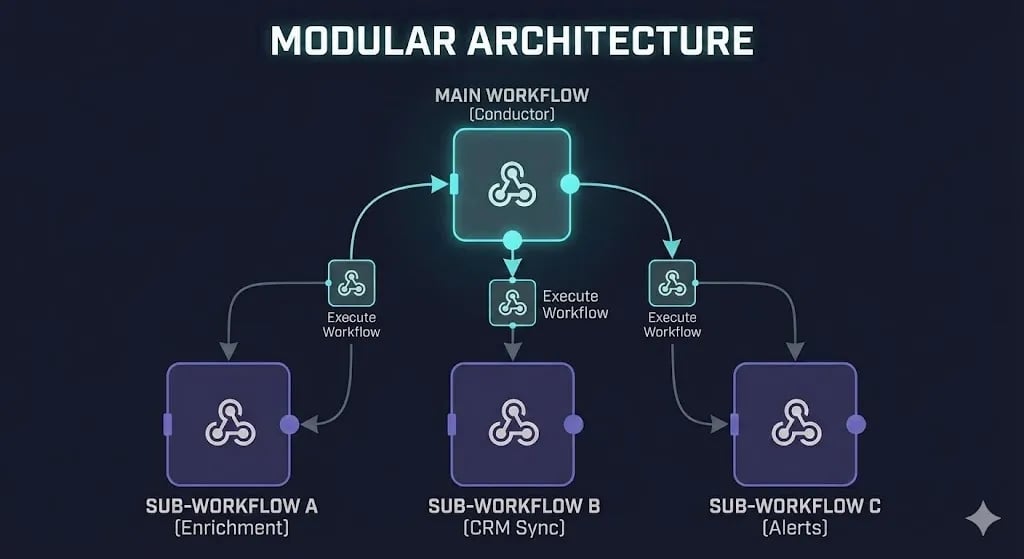
The most common mistake I see in clients who come to me for "workflow rescue" projects is the Spaghetti Monster.
 Click to expand
A single workflow with 120+ nodes trying to handle lead capture, email sequencing, CRM sync, Slack alerts, invoicing, and error handling simultaneously. When one node fails, the entire system stops. When a client asks for a change, you spend 40 minutes scrolling to find the right section.
The Modular Fix
In software engineering we use Functions. In n8n we use the "Execute Workflow" node.
How to structure it:
Lead Enrichment, CRM Sync, Slack Notifications, Invoice Generation.The compounding benefit: Your Slack Notification sub-workflow becomes a reusable company asset. Every automation across your agency that needs to send an alert calls the same sub-workflow. When you change the Slack channel ID, you update it once and every workflow inherits the change instantly. This is how agencies scale without technical debt accumulating.
[!TIP] Affiliate resource: If you are self-hosting and need persistent sub-workflow communication, Vultr's High Frequency Compute provides the low-latency, dedicated infrastructure that keeps parallel sub-workflow execution stable under load.
Phase 6: The Expression Preview Hack
When writing JavaScript inside an n8n Expression — manipulating dates, reformatting strings, conditional logic — most developers write the code and then run the entire node to see if it worked. That is a slow feedback loop.
The hack: n8n evaluates your expressions in real-time against the pinned input data.
As you type {{ $json.name.toUpperCase() }}, look at the small preview text below the input field. If it shows ALFAZ, your logic is correct before executing. If it shows [object Object] or Error, fix it in place.
Combined with Pin Data from Phase 2, this lets you write and validate complex JavaScript transformations without running a single execution. Your iteration speed becomes nearly instant.
Some practical expression patterns worth knowing:
// Format a date cleanly
{{ new Date($json.timestamp).toLocaleDateString('en-US') }}

// Fallback value if a field is empty
{{ $json.company || 'Unknown Company' }}

// Conditional string
{{ $json.plan === 'enterprise' ? 'Priority' : 'Standard' }}

// Extract domain from email
{{ $json.email.split('@')[1] }}
Phase 7: Organization — The Sticky Note Standard
An agency-grade workflow is not just functional. It is a deliverable.
When you hand over a workflow to a client and they see a canvas full of unlabeled nodes and random connections, their trust in you drops. When they see a neatly organized, color-coded architecture with documentation, the perceived value of the work doubles. It looks like a System, not a script.
The Color-Coding Convention
Create Sticky Notes to group related logic, and use this color convention consistently:
- Green — Triggers, webhooks, and entry points
- Blue — Core data processing and transformation
- Yellow — External API calls and third-party integrations
- Red — Error handlers and fallback logic (The Sentinel)
- Purple — Sub-workflow calls (Execute Workflow nodes)
Label each section with one sentence describing what it does. When a client or a new team member opens the workflow three months from now, they can understand the architecture in 60 seconds without asking you a single question. That is what professional delivery looks like.
The Speedrun Checklist
Apply this every time you start a new workflow build:
- Pin Data first. Run the trigger once, pin it, and never touch the real webhook again during development.
- Use
/search to add every node — no mouse menus. - Duplicate, don't rebuild. Start with the closest node you have configured before, duplicate, and modify.
- Drag variables. Never type a JSON path manually.
- Modularize immediately. If any single logic block exceeds 15 nodes, extract it to a sub-workflow.
- Preview expressions before executing. Fix logic at the expression level, not the execution level.
- Apply sticky notes before delivery. Green → Blue → Yellow → Red → Purple.
These are not guidelines. They are the operational standards of a professional automation engineer.
What's Next
You now have the full technical stack:
- Strategy (Days 1-15): What to build and why
- Reliability (Day 17): Systems that don't crash
- Security (Day 18): Systems that don't leak
- Speed (Day 19): Systems built fast
Tomorrow in Day 20, we step into the strategic side of automation engineering: building a Google Analytics 4 data pipeline with n8n that pushes clean, structured performance data into a reporting layer your clients can actually use.
Follow the full series: 30 Days of n8n & Automation
About the Author
Alfaz Mahmud Rizve is a RevOps Engineer and Automation Architect. He helps SaaS founders and scaling agencies eliminate manual revenue bottlenecks by building self-healing, autonomous systems on hardened infrastructure. Explore his work at whoisalfaz.me.
Core Deployment Stack
To build this exact architecture in production, you will need the core infrastructure. I strictly use and recommend the following enterprise-grade platforms.
n8n Cloud
The most powerful fair-code automation platform. Get 20% off your first year on any paid plan.
Vultr High-Performance Cloud
Deploy self-hosted vector databases & AI infrastructure worldwide. Get $300 in free credit.
Complementary RevOps Toolchain
Brevo (formerly Sendinblue)
Enterprise-grade email API and marketing automation. Excellent SMTP for n8n.
Pinecone Vector Database
The vector database for building AI applications. Essential for RAG architectures.
Qdrant Cloud
Rust-native vector search engine for the next generation of AI. Fast, scalable, and memory-efficient.
In this Article
Ready to automate your agency?
Skip the manual grunt work. Let's build a custom system that runs your business on autopilot 24/7.