n8n RAG Tutorial: Stop Answering Repetitive Questions with an AI Knowledge Base
Welcome back to Day 26 of the 30 Days of n8n & Automation series here on whoisalfaz.me.
We have spent the last 25 days building incredible machines. We gave our AI Eyes (Vision API) and Hands (API Tools). But there is one critical component missing from our digital employee: Memory.
Standard Large Language Models (LLMs) like GPT-4 are amazing, but they are “frozen in time.” They know everything about the French Revolution, but they know nothing about your agency’s new “Remote Work Policy” or the specific “SOP for Client Onboarding” you wrote last week.
If you ask a standard ChatGPT bot: “What is our refund policy?” It will hallucinate: “Standard refund policies are usually 30 days.” (This is dangerous).
You need it to say: “According to the contract on Page 4, refunds are only issued if the project is delayed by 10 days.”
To achieve this, we need RAG (Retrieval-Augmented Generation).
In this deep-dive n8n RAG tutorial, we are going to build a system that can “read” your private company PDFs, memorize them, and answer questions with 100% accuracy. This is the foundation of every “Chat with PDF” SaaS you see on the market—and today, you will build your own for free.
The Concept: What is RAG? (The “Open Book” Exam)
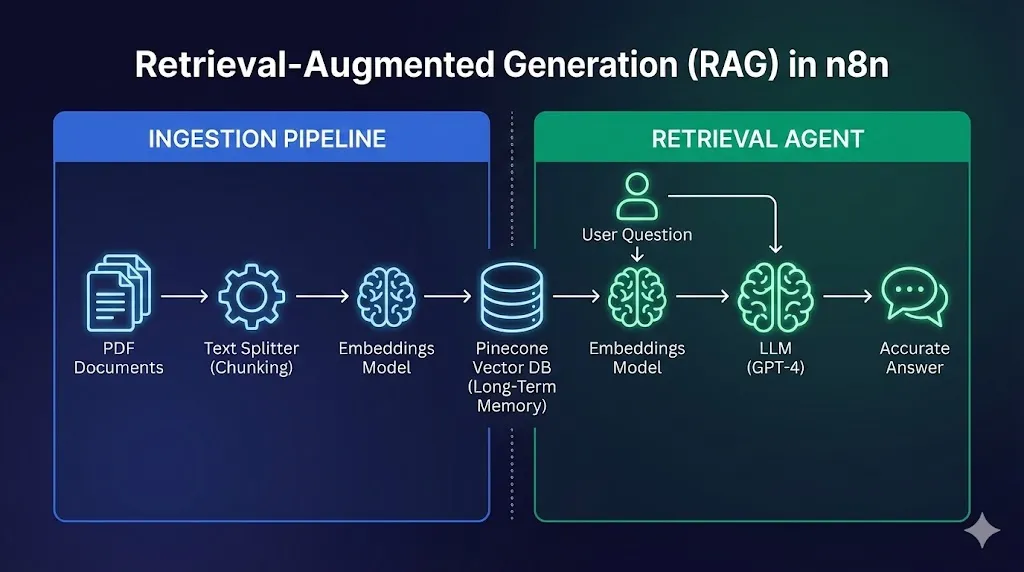
Before we drag a single node, you must understand the architecture. RAG is confusing to beginners because it involves two completely separate workflows that never touch each other directly.
Think of RAG like an Open Book Exam.
- Without RAG: The student (AI) has to memorize the textbook. If the book is too long, they forget details.
- With RAG: The student is allowed to open the book, look up the specific chapter, read that paragraph, and then answer the question.
The Vector Space Theory
How does a computer “look up” a paragraph? It doesn’t use keywords like CTRL+F. It uses Vectors.
We use an “Embedding Model” (like text-embedding-3-small) to turn text into a list of numbers (coordinates).
- “King” might look like
[0.9, 0.1, 0.5] - “Queen” might look like
[0.9, 0.1, 0.8] - “Apple” might look like
[0.1, 0.9, 0.1]
In this 3D space, “King” and “Queen” are physically close together. “Apple” is far away.
When your user asks a question, we convert their question into numbers and simply look for the paragraph that is “mathematically closest” in the database. This allows us to find answers even if the user uses different words (e.g., searching for “time off” helps find “vacation policy”).
The Tech Stack (Free Tier Friendly)
To build this “Agency-Grade” system, we need a specific stack. We will stay within the Free Tiers of these services.
- n8n: The orchestration engine.
- Pinecone: The “Long-Term Memory” (Vector Database).
- Why Pinecone? It is the industry standard, extremely fast, and has a generous free tier (1 Index).
- OpenAI: We need it for two things:
- Embeddings:
text-embedding-3-small(Cheap and fast). - Chat:
gpt-4o(Smart and accurate).
- Embeddings:
Pre-Requisite: Pinecone Setup
- Go to Pinecone.io and sign up.
- Create a new Index.
- Name:
n8n-knowledge-base. - Dimensions:
1536(This is critical. OpenAI models always output 1536 dimensions. If you get this wrong, it won’t work). - Metric:
Cosine.
- Name:
- Click Create Index.
- Copy your API Key.
Part 1: The “Ingestion” Pipeline (Teaching the AI)
The first workflow is the “Librarian.” Its only job is to watch for new documents, read them, and file them away in the database.
Step 1: The Trigger
We want this to be automated. Use a Google Drive Trigger node.
- Event: File Created.
- Poll Time: 1 Minute.
- Watch: A specific folder (e.g., “Company SOPs”).
Note: If you don’t want to use Drive, you can just use a “Manual Trigger” and a “Read Binary File” node to upload files from your desktop during testing.
Step 2: Extracting Text
The file comes in as “Binary Data” (a blob of code). We need to turn it into English text.
- Node: Default Data Loader (This is an n8n built-in node).
- Input: Connect it to the Google Drive node.
- Settings: Leave as default. It automatically detects PDF, DOCX, or TXT.
Step 3: Chunking (The Secret Sauce)
You cannot feed a 100-page PDF into Pinecone as one block. It’s too big, and the context gets lost. We need to slice it into small “flashcards” or Chunks.
- Node: Recursive Character Text Splitter.
- Chunk Size:
1000characters. - Chunk Overlap:
100characters.
Why Overlap? Imagine a sentence gets cut in half: “The refund policy is… [CUT] …not applicable on Sundays.” If we don’t have overlap, the meaning is lost. Overlap ensures the next chunk starts with: “…policy is not applicable on Sundays.”
Step 4: Embedding & Storage
Now we convert those text chunks into numbers and save them.
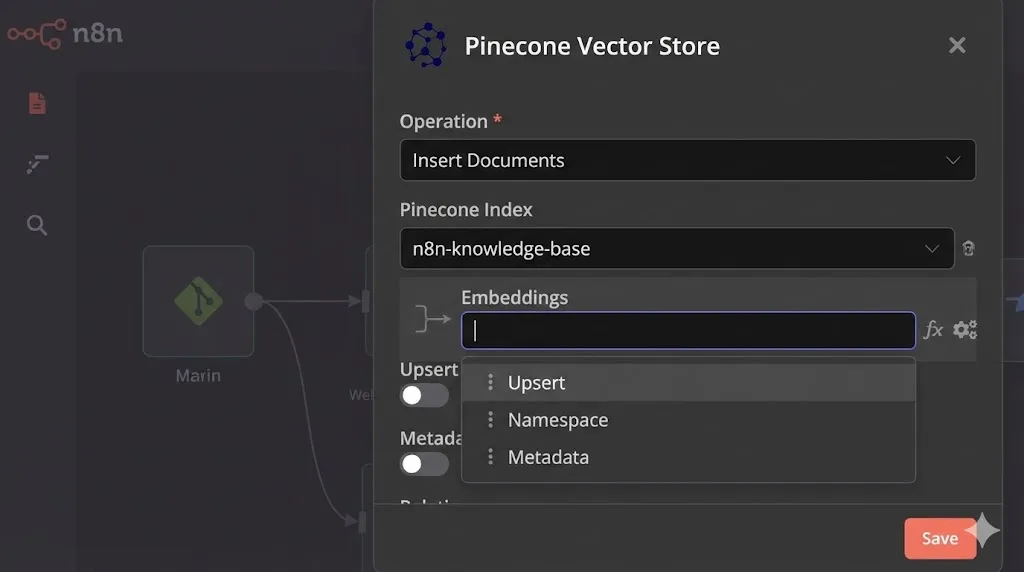
- Node: Pinecone Vector Store.
- Mode:
Insert Documents(Important!). - Pinecone Index:
n8n-knowledge-base. - Sub-Node (Embeddings): You will see a connector input for “Embeddings”. Connect an OpenAI Embeddings node here.
- Model:
text-embedding-3-small.
- Model:
Execute the Workflow: Upload a sample PDF (e.g., “Employee Handbook”) to your Drive folder. Watch the nodes turn green. Go to your Pinecone Dashboard. You should see the “Vector Count” jump from 0 to 50 (or however many chunks your PDF had).
Your AI now has a brain.
Part 2: The “Retrieval” Agent (The Librarian)
Now we build the bot that the user actually talks to. This workflow will look very similar to Day 25, but instead of an API Tool, we use a Vector Store Tool.
Step 1: The Brain
Start with a Chat Trigger connected to an AI Agent node.
- Model: Connect an OpenAI Chat Model (
gpt-4o). - System Prompt:“You are a helpful HR assistant for our agency. You answer questions based ONLY on the context provided in the Knowledge Base. If the answer is not in the Knowledge Base, politely say ‘I do not have that information in the SOPs.’ Do not make up answers.”
Step 2: The Vector Store Tool
We need to give the agent permission to “look up” information.
- Node: Vector Store Tool (Connect this to the “Tools” input of the Agent).
- Name:
knowledge_base. - Description:“Call this tool to find information about company policies, SOPs, guidelines, and handbook rules. Always use this tool before answering a question.”
Step 3: Connecting the Database
Double-click the Vector Store Tool. Inside, you need to tell it where to look.
- Node: Pinecone Vector Store.
- Mode:
Retrieve(Note: In Part 1 we used Insert, now we use Retrieve). - Sub-Node (Embeddings): Connect the OpenAI Embeddings node.
- CRITICAL: You MUST use the exact same model (
text-embedding-3-small) as you did in the ingestion pipeline. If you use a different model, the math won’t work, and the AI will be blind.
- CRITICAL: You MUST use the exact same model (
Step 4: Search Configuration
In the Pinecone Retrieve node settings:
- Top K:
4. (This means “Fetch the 4 most relevant paragraphs”). - Return Metadata: Toggle
True. (We need this for citations).
Testing Your RAG Workflow
It is time to see the magic.
- Open the Chat window in n8n.
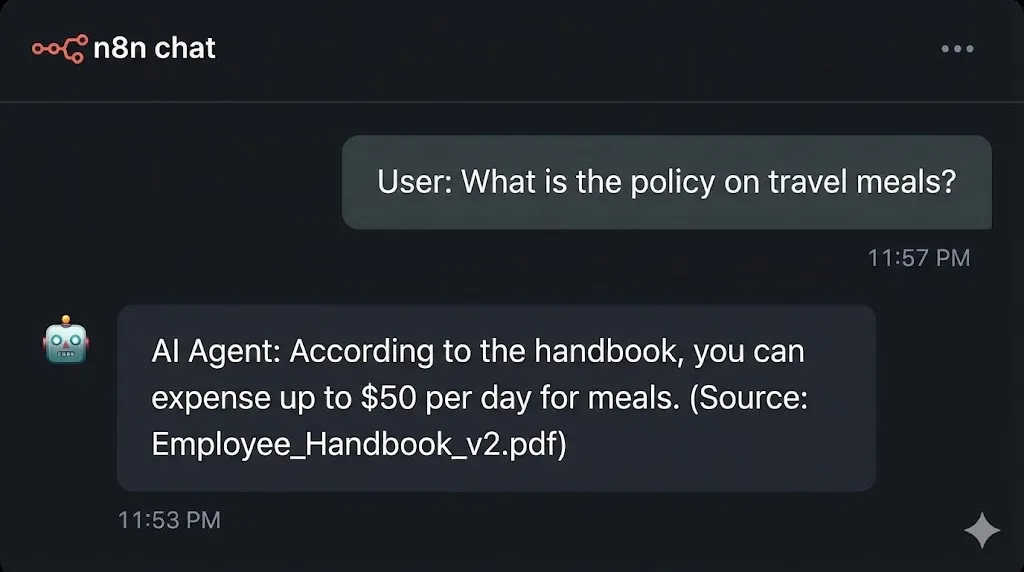
- User: “What is the policy on travel meals?”
- Watch the Execution:
- The Agent receives the question.
- It thinks: I need to check the
knowledge_base. - It converts “travel meals” into numbers.
- It sends those numbers to Pinecone.
- Pinecone returns the 4 chunks that discuss “meals” and “expenses.”
- The Agent reads those chunks.
- Response: “According to the handbook, you can expense up to $50 per day for meals.”
It works. You have just built a custom Chat with PDF n8n application that is private, secure, and accurate.
Advanced: Adding Citations (Agency-Grade Polish)
If you want to sell this as a service, “trust” is your currency. Users want to know where the bot got the answer.
Since we enabled Metadata in the Retrieval node, the AI actually sees the filename and page number (if your PDF parser captured it).
Update your System Prompt:
“Always cite the source of your information at the end of your answer. Format it as: (Source: [Filename])”.
Now, when you ask about travel meals, the bot will reply: “You can expense $50/day. (Source: HR_Handbook_2025.pdf)”
This small touch makes the difference between a “toy” and a “business tool.”
Use Cases: How to Monetize This
Now that you possess this skill, what can you build?
- HR Onboarding Bot:
- Ingest 50+ PDF policy documents.
- New hires can ask “How do I set up my 401k?” instead of emailing HR.
- Value: Saves HR 10 hours/week.
- Legal Contract Auditor:
- Ingest a massive Master Service Agreement (MSA).
- Ask: “What are the termination clauses?”
- Value: Saves lawyers hours of reading.
- Technical Support Bot:
- Ingest all your product manuals and old support tickets.
- Technicians can ask “Error code 504 on Model X” and get the fix instantly.
- Value: Reduces “Time to Resolution” by 50%.
Conclusion
You have successfully implemented RAG in n8n.
You have moved beyond simple automation (moving data from A to B) and into the world of Knowledge Management. You are now capable of building “Brains” for your clients, not just “Hands.”
What’s Next? We have Tools (Day 25) and Knowledge (Day 26). But right now, we are still typing on a keyboard. What if you could talk to your agent while driving? Tomorrow, on Day 27, we are going to build a Voice-Activated AI Assistant using OpenAI Whisper and Twilio. We will make n8n call you on the phone and have a real conversation.
See you in the workflow editor.