H1: n8n Global Error Handling: Building a Centralized “Watchtower” for Your Agency
Welcome back to Day 23 of the 30 Days of n8n & Automation series here on whoisalfaz.me.
If you have been following this series, you are no longer a beginner. You have built Automated content research (Day 15), Social Listeners (Day 21), and Client Reporters (Day 22).
But as your library of workflows grows from 5 to 50, you face a new enemy: Maintenance Debt.
On Day 7: Debugging Basics, we covered how to handle errors locally. We taught you the “Try-Catch” pattern to handle specific logic failures (e.g., “If the lead is duplicate, update the row instead of creating it”).
That works perfectly for logic. But what about system failures? What happens when your API key expires? What happens when the n8n memory spikes and crashes a workflow?
If you rely solely on the Day 7 method, you would need to copy-paste error nodes into every single workflow you ever build. That is not “Agency-Grade.” That is a nightmare waiting to happen.
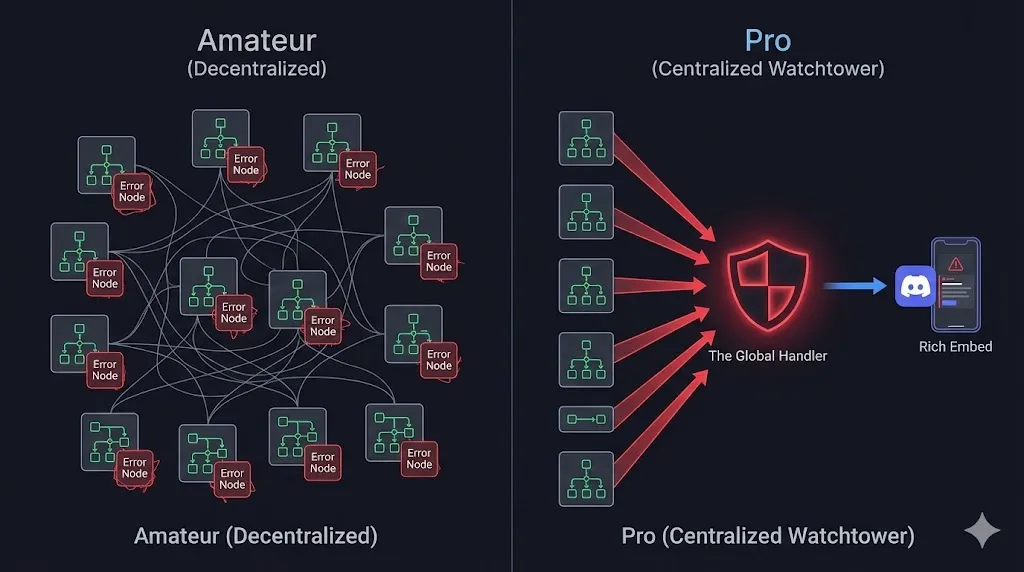
Today, we level up. We are going to build n8n Global Error Handling—a single “Watchtower” workflow that monitors your entire instance. If any workflow fails, this Watchtower wakes up, diagnoses the crash, and pings you with a direct link to fix it.
Local vs. Global Error Handling: The Architecture
Before we build, it is critical to understand the distinction. Mixing these two strategies is the mark of an amateur.
1. Local Error Handling (The Logic Layer)
- Context: Handled inside the specific workflow.
- Use Case: Expected failures.
- Example: “The Google Sheet row is missing an email address.”
- Action: Ignore the row and continue.
- Reference: Read Day 7 for this implementation.
2. Global Error Handling (The System Layer)
- Context: Handled by a separate master workflow.
- Use Case: Unexpected crashes or critical failures.
- Example: “The HubSpot API returned a 500 Server Error.”
- Action: Stop everything and alert the developer immediately.
The goal of today is to build a system where you never have to manually check your execution logs again.
Step 1: The “Error Trigger” Node
The heart of n8n global error handling is a special node that most users ignore: the Error Trigger.
Unlike standard triggers (like Cron or Webhooks) that start a workflow based on an event, the Error Trigger starts based on a state. It listens to the n8n core process.
Building the Workflow
- Create a new Workflow.
- Name it:
_Global_Error_Handler(The underscore keeps it at the top of your list). - Add the Error Trigger node.
The Payload
When a crash occurs, this node automatically ingests a JSON object containing the forensic data of the crime:
workflow.id: The ID of the failed workflow.workflow.name: The human-readable name (e.g., “Day 22 Client Reporter”).execution.id: The specific run that failed.execution.error.message: The technical reason (e.g.,401 Unauthorized).
This data is crucial. Without it, an alert is just noise. With it, it’s a diagnostic report.
Step 2: The “Deep Link” Generator (The Value Add)
Here is the biggest friction point in debugging: You get an email saying “Workflow Failed.” You open n8n. You search for the workflow. You open the “Executions” tab. You scroll to find the failed run.
That takes 2 minutes. We can reduce it to 2 seconds.
We will construct a Deep Link URL that takes you directly to the failed execution.
Add a Set Node connected to your Trigger. Create a variable called execution_url.
The Formula:
JavaScript
// Ensure you have your Base URL set in variables or hardcode it
const baseUrl = "https://n8n.your-domain.com";
const workflowId = $json["workflow"]["id"];
const executionId = $json["execution"]["id"];

return {
  deep_link: `${baseUrl}/workflow/${workflowId}/executions/${executionId}`
}
Now, your alert will contain a clickable link. One click, and you are staring at the red node that caused the crash.
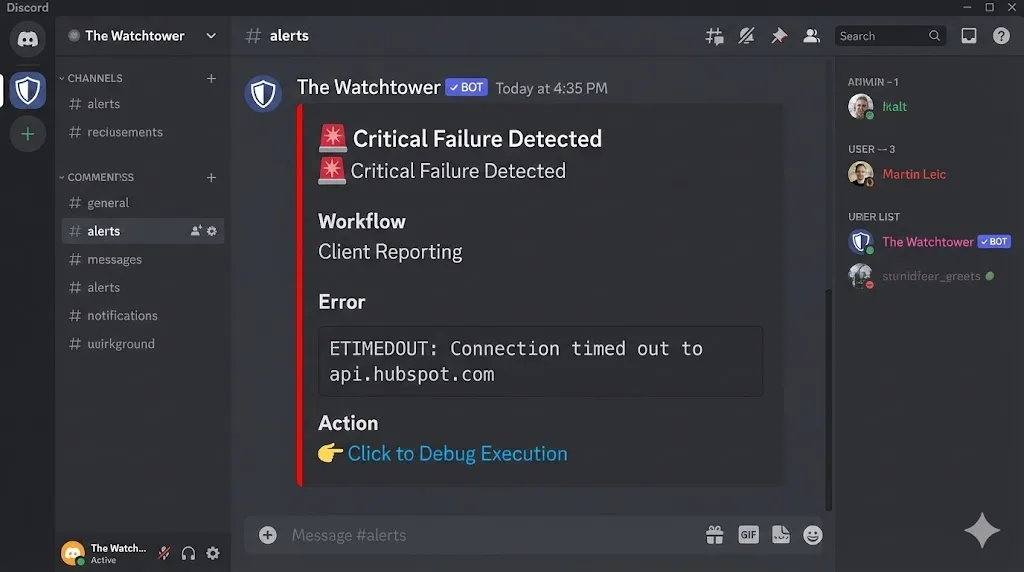
Step 3: The “Rich Embed” Alert (Discord/Slack)
Plain text alerts are easy to ignore. We want a “Red Alert” that commands attention.
For this tutorial, we will use Discord because its “Rich Embeds” are visually superior for error reporting (color-coded sidebars, fields, etc.), but the logic applies to Slack or Microsoft Teams equally well.
The Discord Webhook Setup
- Add an HTTP Request node.
- Method: POST.
- URL: Your Discord Webhook URL.
- Body: JSON.
The JSON Payload
Copy this structure. It organizes the data into a readable “Card.”
JSON
{
  "username": "The Watchtower",
  "avatar_url": "https://i.imgur.com/your-brand-icon.png",
  "embeds": [
    {
      "title": "🚨 Critical Failure Detected",
      "description": "A workflow has crashed in the production environment.",
      "color": 15158332, // Red Color Code
      "fields": [
        {
          "name": "Workflow Name",
          "value": "{{$json.workflow.name}}",
          "inline": true
        },
        {
          "name": "Error Message",
          "value": "```{{$json.execution.error.message}}```"
        },
        {
          "name": "Action",
          "value": "[👉 Click to Debug Execution]({{$json.deep_link}})"
        }
      ],
      "footer": {
        "text": "System Time: {{$now}}"
      }
    }
  ]
}
Why this matters:
- The Red Color: Instantly tells your brain “This is urgent.”
- The Code Block: Makes the technical error readable.
- The Link: Reduces friction to zero.
Step 4: Connecting the Fleet
This is the step most people forget. Creating the _Global_Error_Handler workflow does nothing on its own. You must tell your other workflows to use it.
You do not need to add nodes to your other workflows. You simply change a setting.
- Open any existing workflow (e.g., your Day 22 Client Reporter).
- Click the Three Dots (Menu) in the top right corner.
- Select Settings.
- Find the “Error Workflow” dropdown.
- Select
_Global_Error_Handler. - Click Save.
That is it.
Now, if that Client Reporter crashes, n8n will automatically delegate the error data to your Watchtower workflow. You have successfully implemented n8n global error handling.
Repeat this “Settings” tweak for every critical workflow in your agency.
Advanced: The “Self-Healing” Filter
As you scale, you will encounter “flaky” errors—a momentary API timeout that resolves itself in 1 second. You do not want to be woken up at 3 AM for a glitch.
We need to add Retry Logic before the Global Handler is triggered.
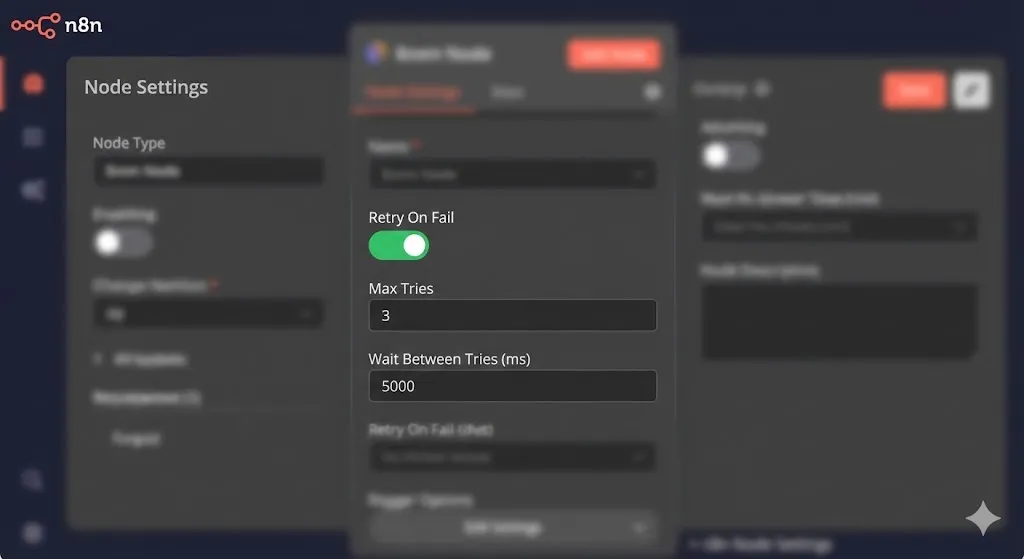
Node-Level Retries
In your operational workflows (not the error handler), go to the settings of your HTTP Request nodes.
- Retry on Fail: Toggle On.
- Max Tries: 3.
- Wait Between Tries: 5000ms.
The Logic Flow:
- The Node fails.
- n8n waits 5 seconds and tries again (Attempt 2).
- n8n waits 5 seconds and tries again (Attempt 3).
- If it still fails, THEN it triggers the Global Error Handler.
This acts as a “Noise Filter,” ensuring that your Watchtower only alerts you to genuine, persistent problems that require human intervention.
Conclusion: From Fragile to Anti-Fragile
Automation is powerful, but it is fragile. By implementing n8n Global Error Handling, you transform your agency from a “Break-Fix” operation into a professional engineering outfit.
You now have a system that:
- Filters noise (via Retries).
- Centralizes logic (via the Watchtower).
- Accellerates fixes (via Deep Links).
This is exactly how I manage my systems at whoisalfaz.me. I don’t check logs; I wait for the Watchtower to tell me if something needs attention.
What’s Next? We have secured the backend. Now, it’s time to open up the gates. Tomorrow, on Day 24, we will explore n8n Webhooks & API Endpoints. I will show you how to turn your n8n workflows into a public API that can receive data from your website, Stripe, or even a custom mobile app.
See you in the workflow editor.
External Resources:
- n8n Error Trigger Documentation
- Discord Webhook Guide
- HTTP Status Codes Explained (Know your 400s from your 500s).