
Every Monday morning, SEO professionals, agency owners, and SaaS founders face the exact same ritual. You log into Ahrefs, Semrush, or Moz, holding your breath to see if your “money keywords” went up or down.
These platforms are engineering marvels, but they charge you a steep “lazy tax.” Paying $99 to $199 per month just to track 50 or 100 keywords is a massive overhead for a lean startup or a boutique agency. You are essentially paying a premium for a pretty dashboard when the raw data actually costs pennies.
Here is the dirty secret of the SEO industry: Most rank tracking tools are just wrappers around the same APIs you can access yourself.
What if you could build your own automated rank tracker tool that runs on autopilot, costs $0/month (thanks to generous free tiers), and sends the data exactly where you need it?
Welcome to Day 16 of the 30 Days of n8n & Automation series. In our previous post (Day 15), we built an automated content research engine to find what to write. Today, we are building the scoreboard. We will create a fully custom automated rank tracker tool using n8n, SerpApi, and Google Sheets that rivals the expensive SaaS competitors.
We will architect a fully custom automated rank tracker tool using n8n, Serper.dev, and Google Sheets. This isn’t a toy project; this is a scalable system capable of tracking hundreds of keywords for free.
I’m Alfaz Mahmud Rizve, and at whoisalfaz.me, we believe you should own your data, not rent it. Let’s build your custom SEO engine.
Part 1: The Economics of “Build vs. Buy”
Before we open n8n, let’s look at the math. Why bother building this?
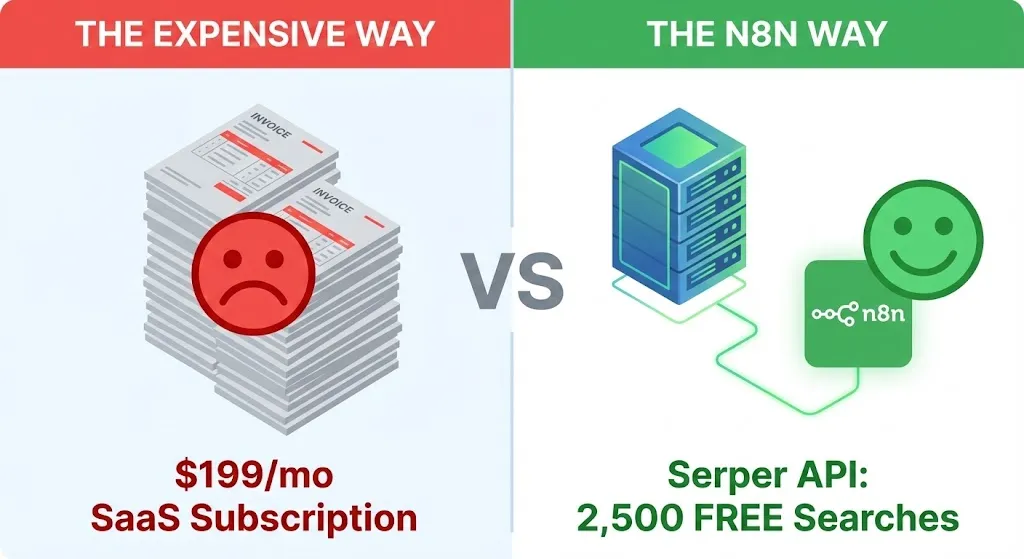
Most SaaS rank trackers charge based on “keyword credits.” If you want to track 500 keywords daily, you are pushed into the $199/mo tier. But if you buy that data directly from a SERP (Search Engine Results Page) provider, the cost is trivial.
The Cost Comparison (Per 1,000 Searches)
| Solution | Cost | Notes |
| Ahrefs / Semrush | $99 – $199/mo | Includes other tools you might not use. |
| Wincher / Nightwatch | $49/mo | Cheaper, but still a monthly recurring cost. |
| Serper.dev (Direct API) | $1.00 | You pay per 1,000 searches. First 2,500 are free. |
| SerpApi (Direct API) | $0.00 – $50 | Great for non-Google engines (Bing/Yahoo). |
By building this automated rank tracker tool, you unlock three massive advantages:
- Massive Cost Savings: We will use Serper.dev for this tutorial. They offer 2,500 free searches upon signup. That allows you to track 625 keywords every single week without paying a dime.
- Total Customization: You control the logic. Want to track rankings in a specific zip code? Want to ignore “People Also Ask” boxes? You decide.
- No Login Fatigue: The data comes to you. Instead of logging into a dashboard, your bot pushes a summary to Slack or Email.
<img src=”image_9.png” alt=”Cost comparison chart showing the difference between expensive SEO software and a custom automated rank tracker tool using n8n by Alfaz Mahmud Rizve.” style=”width: 100%; height: auto;”>
Part 2: The Architecture & Tech Stack
We aren’t just connecting two apps; we are building a data pipeline.
The Stack:
- n8n: The orchestrator. It handles the scheduling, looping, and logic.
- Serper.dev: The “Eyes.” This is a high-speed Google Search API built for LLMs and scrapers. It is faster and cheaper than traditional proxies.
- Google Sheets: The “Database.” We will use it to store our keyword list and our historical data.
- Looker Studio (Optional): The “Dashboard.” We can connect our Sheet to Looker to give clients a live link (more on this later).
The Workflow Logic:
Trigger (Monday 9AM) → Read Keywords from Sheet → Loop (Batch of 1) → Call Serper API → Find URL Position → Calculate Change → Save to History → Aggregate Results → Send Slack Alert.
Part 3: Prerequisites & Setup
Do not skip this. The success of your automation depends on proper authentication.
1. Get your Serper.dev API Key
- Go to Serper.dev.
- Sign up (no credit card required).
- Copy your API Key from the dashboard.
- Note: You get 2,500 credits immediately.
2. Prepare Google Sheets
Create a new Google Sheet. You need two specific tabs:
Tab 1 Name: Keywords
- Row 1 Headers:
- Column A:
Keyword(e.g., “n8n automation”) - Column B:
Target URL(e.g., “whoisalfaz.me”) - Column C:
Location(e.g., “us”, “uk”, “bd”) – Crucial for local SEO. - Column D:
Device(e.g., “desktop” or “mobile”)
- Column A:
Tab 2 Name: History
- Row 1 Headers:
- Column A:
Date - Column B:
Keyword - Column C:
Rank - Column D:
Change - Column E:
URL Found
- Column A:
Part 4: Building the Engine (Step-by-Step)
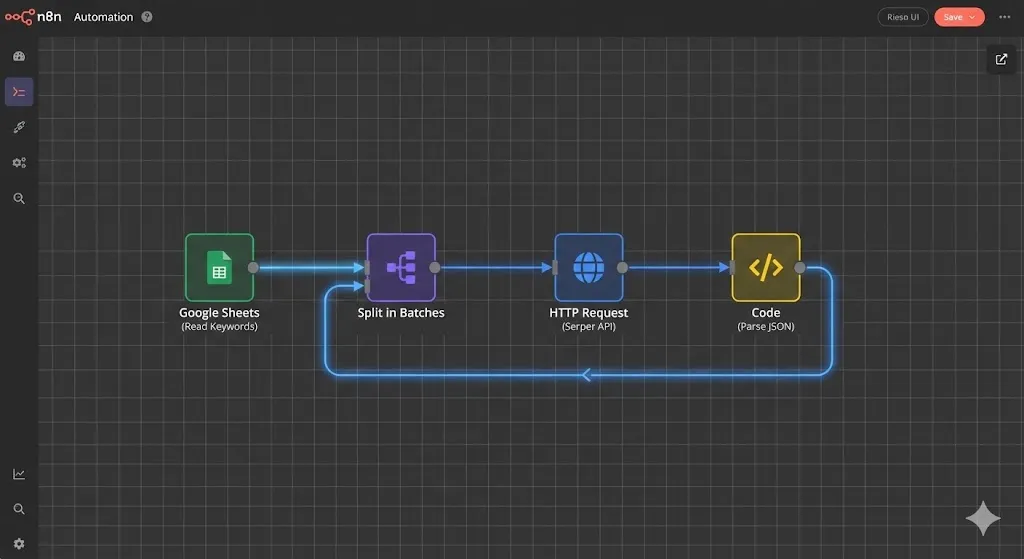
Open your n8n editor. Let’s build this node by node.
Step 1: The “Wake Up” Trigger
Rankings fluctuate hourly, but tracking them that closely is noise. A weekly check is standard for reporting.
- Node: Schedule Trigger
- Settings:
- Trigger Interval:
Weeks - Weeks Between Triggers:
1 - Time:
Mondayat09:00 AM
- Trigger Interval:
Step 2: Read Your Keyword Database
We need to pull the list of what to track.
- Node: Google Sheets
- Operation: Get Many Rows
- Sheet ID: (Select your sheet)
- Range:
Keywords!A:D - Output: Ensure “Data is contained in” is set to “JSON”.
Step 3: The “Split in Batches” Loop
This is the most critical technical concept. We cannot send 100 keywords to the API instantly—we need to process them one by one (or in small batches) to handle the data correctly and avoid rate limits.
- Node: Split in Batches
- Batch Size:
1
Connect the “Google Sheets” node to this “Split in Batches” node.
Step 4: The Serper.dev API Call
Now, inside the loop, we hit the API.
- Node: HTTP Request
- Method:
POST - URL:
https://google.serper.dev/search - Authentication: Generic Credential Type -> Header Auth.
- Name:
X-API-KEY - Value: Paste your Serper API Key.
- Name:
- Send Body: Turn toggle ON.
- Body Parameters (JSON):JSON
{ "q": "{{$json.Keyword}}", "gl": "{{$json.Location}}", "hl": "en" }(Note: Drag and drop theKeywordandLocationfrom the Input Data panel to make them dynamic variables).
<img src=”image_10.png” alt=”n8n workflow diagram showing the Split In Batches loop logic for processing multiple keywords in an automated rank tracker tool.” style=”width: 100%; height: auto;”>
Step 5: Parsing the JSON (The Intelligence)
The API returns a huge JSON with “organic”, “peopleAlsoAsk”, “relatedSearches”, etc. We need to find our ranking.
- Node: Code (JavaScript)
- Goal: Scan the top 100 results for our
Target URL.
Copy/Paste this Logic:
JavaScript
// Input variables from previous nodes
const organicResults = items[0].json.organic;
// We need to access the original keyword data from the SplitInBatches node context
// In n8n, this usually requires referencing the specific node or ensuring data flow
const targetUrl = $('Split in Batches').item.json['Target URL'];

let rank = "100+"; // Default if not found
let foundUrl = "Not Found";

if (organicResults) {
  for (let i = 0; i < organicResults.length; i++) {
    // Check if the link contains our target domain
    if (organicResults[i].link.includes(targetUrl)) {
      rank = organicResults[i].position;
      foundUrl = organicResults[i].link;
      break; // Stop the loop, we found it!
    }
  }
}

return {
  json: {
    rank: rank,
    found_url: foundUrl,
    checked_at: new Date().toISOString(),
    keyword: $('Split in Batches').item.json['Keyword']
  }
}
Step 6: Calculating “The Change” (Delta)
Knowing you are #5 is good. Knowing you were #9 last week (so you went up +4) is better.
To do this, we need to look up the last time we checked this keyword.
- Node: Google Sheets (Get Many Rows)
- Sheet:
History - Logic: This is complex to do purely in n8n without a database query.
- Simpler Alternative for V1: Just record the rank. Let Google Sheets handle the delta calculation using a formula like
=C2-C3. - Advanced Alternative: Use the “Google Sheets – Lookup” node to find the last row matching the keyword and subtract the values.
- Simpler Alternative for V1: Just record the rank. Let Google Sheets handle the delta calculation using a formula like
For this tutorial, we will append the data and let Sheets handle the visualization.
Step 7: Saving the Data
- Node: Google Sheets (Append)
- Sheet:
History - Mapping: Map the fields from the Code node (
rank,found_url) to the columns.
Step 8: The “Wait” (Politeness Policy)
Never hammer an API.
- Node: Wait
- Amount:
1Second. - Connect this back to the input of the “Split in Batches” node to close the loop.
Part 5: The Notification System
Once the loop finishes (the “Done” output of the Split in Batches node), we want a summary.
We don’t want 50 emails. We want one digest.
- Node: Code (JavaScript) connected to the “Done” branch.
- Logic: This node needs to gather all the execution data. Since n8n loops can be tricky to aggregate, the easiest method is to query the “History” sheet for today’s entries.
- Node: Slack / Gmail.
- Message Body:🚀 Weekly SEO ReportDate: {{new Date().toDateString()}}Keywords Checked: 50View the full dashboard here: [Link to your Google Sheet]
<img src=”image_11.png” alt=”The final weekly summary of the automated rank tracker tool delivered via Slack notification, showing keyword position changes.” style=”width: 100%; height: auto;”>

Part 6: Visualizing Data (The Pro Tip)
Raw data in Sheets is ugly. Let’s make it look like a $200 SaaS.
- Open Looker Studio (free).
- Click Create > Data Source.
- Select Google Sheets and pick your “History” tab.
- Create a Line Chart:
- Dimension:
Date - Breakdown Dimension:
Keyword - Metric:
Rank(Important: In the Style tab, reverse the Y-Axis so Rank 1 is at the top).
- Dimension:
Now you have a dynamic, interactive dashboard you can share with clients via a simple link. They see their rankings improve, and you didn’t pay a cent for software.
Common Pitfalls & Troubleshooting
Alfaz Mahmud Rizve advises watching out for these specific issues when building your automated rank tracker tool:
- The “100+” Trap: If your rank consistently says “100+”, verify your
Target URLin the Sheet. If you enteredhttps://whoisalfaz.mebut Google indexeshttps://www.whoisalfaz.me, the string match might fail. Use just the root domain (e.g.,whoisalfaz) to be safe. - Location Bias: If you track “plumber” without a location, Google gives you generic results. If your client is in London, the generic US results are useless. Always use the
gl(Geo Location) parameter (e.g.,uk,bd,ca). - Mobile vs. Desktop: Rankings differ wildly by device. Serper.dev defaults to Desktop. If you are a B2C brand, mobile is more important. You can change this in the API body logic.
- Multi-Engine Tracking: Serper.dev is Google-only. If you need Bing, Yahoo, or YouTube rankings, you must swap the API node for SerpApi. Note that SerpApi’s free tier is lower (100 searches/mo), so use it sparingly for secondary engines.
Deployment Checklist
Ready to fire your expensive SEO tool and run your own?
- [ ] API Key: Created account on Serper.dev.
- [ ] Database: Created Google Sheet with “Keywords” and “History” tabs.
- [ ] Trigger: Configured n8n Schedule Trigger (Weekly/Monday).
- [ ] The Loop: Built the “Read -> Batch -> API -> Parse” loop correctly.
- [ ] Logic: Verified the JavaScript finds the correct domain.
- [ ] Storage: Connected the Google Sheets Append node.
- [ ] Wait Node: Added a 1-second delay to be safe.
- [ ] Test: Ran it with 1-2 keywords first.
What’s Next?
You now have a live pulse on your SEO performance without the monthly subscription fees. You have built a customized automated rank tracker tool that works for you, not the other way around.
But tracking data is only half the battle. Reporting to clients is the other half.
In tomorrow’s post, Day 17, we will cover Automated Client Reporting. I will show you how to take this raw SEO data (and more) and auto-generate beautiful, branded PDF reports using Google Docs and n8n, ready to send to your clients automatically.
Stay tuned. Subscribe to the 30 Days of n8n series so you don’t miss the PDF generation workflow!