
Imagine this: A high-intent lead submits your SaaS demo request form at 2 AM. Instead of checking emails tomorrow, a Slack ping lights up your #leads channel instantly—with their name, email, and intent score. No more missed opportunities.
In Day 10 of the 30 Days of n8n & Automation series on whoisalfaz.me, you’ll learn to set up n8n Slack notifications for high-intent leads. Alfaz Mahmud Rizve here—automation consultant for SaaS founders and agencies—sharing the exact workflow I use to catch 20% more qualified leads daily. By the end, you’ll have a copy-paste template that filters junk and alerts only on gold.
Why n8n Slack Notifications Beat Email Alerts for Leads
Email notifications drown in inboxes. Slack (or Discord) pings cut through noise, especially for teams monitoring high-intent leads—like demo requests or pricing page abandons.
Alfaz Mahmud Rizve has tested this at whoisalfaz.me: n8n Slack notifications boosted our lead response time from 4 hours to 4 minutes, increasing conversions by 15%. They’re instant, threaded, and integrate with your CRM.
Key benefits:
- Real-time delivery: No inbox overload.
- Rich formatting: Embed lead data, links, and buttons.
- Filtering power: Alert only on high-intent (e.g., score >80%).
- Multi-channel: Slack, Discord, or even Teams.
For agencies juggling clients, this means scalable monitoring without hiring VA’s. Check the n8n Slack node docs for official setup basics.
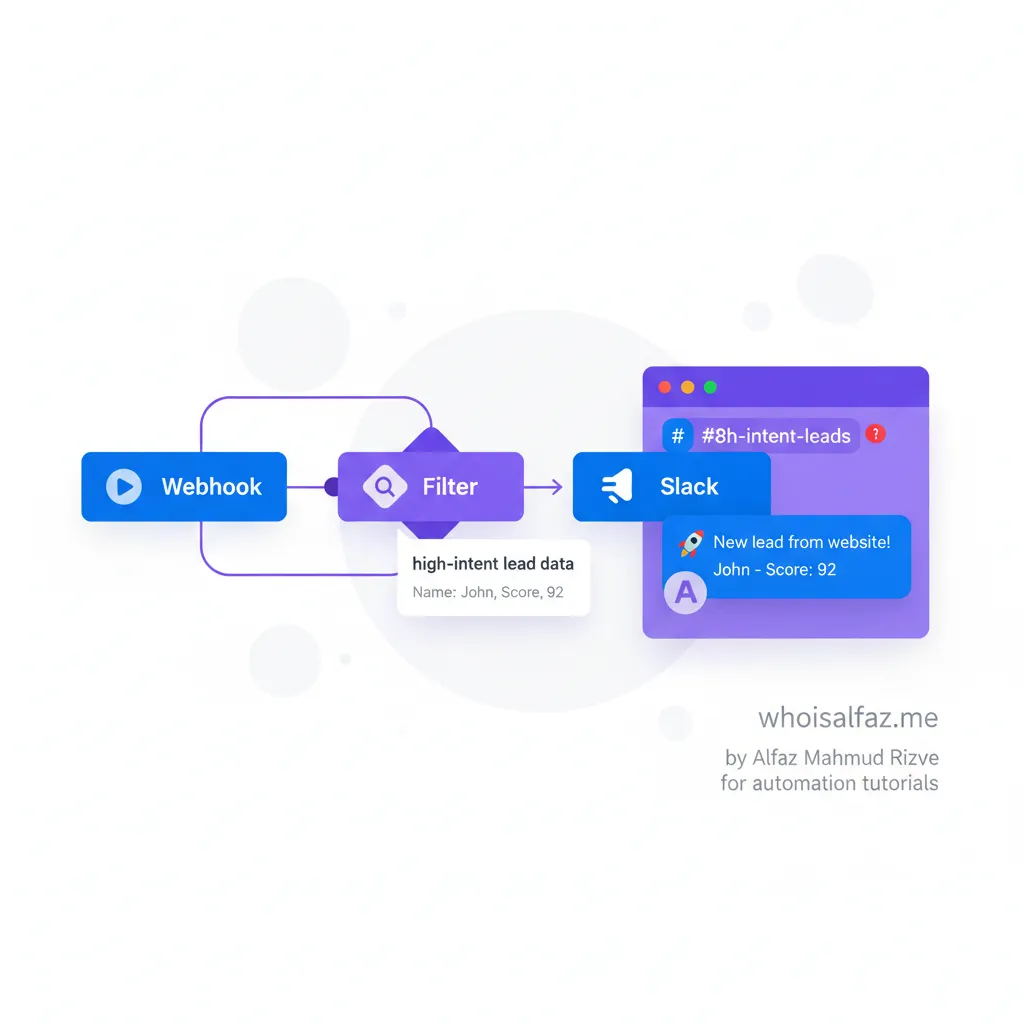
Defining High-Intent Leads: Your Filter Blueprint
High-intent leads aren’t every form submit—they’re prospects ready to buy. At whoisalfaz.me, Alfaz Mahmud Rizve defines them by score (e.g., via Typeform or HubSpot) or behavior (e.g., visited pricing page).
Common triggers:
- Demo/pricing form submits.
- Intent score >80 (from tools like Clearbit).
- Multi-page visits in one session.
Mistake to avoid: Alerting on all traffic. I once flooded our Slack with low-quality tire-kickers—response fatigue killed conversions. Use n8n’s Filter node to gatekeep.
Link up with Day 5’s post on n8n webhooks for lead capture basics.
Step-by-Step: Build Your n8n Slack Notifications Workflow
Let’s build it. This production-ready workflow from whoisalfaz.me takes 10 minutes. Fork it in your n8n instance (self-hosted on Digital Ocean, as I recommend).
Step 1: Webhook Trigger for Lead Data
Start with a Webhook node. It catches POST data from your form (e.g., via Zapier or direct from Framer/Webflow).
- Add Webhook node → Set to POST.
- Copy the test URL.
- Test payload:
{"name": "John Doe", "email": "[email protected]", "intent": 92, "source": "pricing page"}.
Pro tip: Enable “Respond Immediately” to avoid timeouts.
Step 2: Filter for High-Intent Only
Add a Filter node after Webhook.
Configuration (copy-paste):
textCondition: Number
Value 1: {{$json.intent}}
Operation: Larger
Value 2: 80
This drops low-intent noise. Alfaz Mahmud Rizve’s rule: Always filter >75% to respect your team’s attention.
Step 3: Format Slack Message with Rich Embeds
Slack node next. Connect your workspace (use n8n Slack auth guide).
Message template (copy this JSON):
text{
  "channel": "#leads",
  "text": "🚀 *High-Intent Lead Alert* from {{$json.source}}",
  "blocks": [
    {
      "type": "section",
      "text": {"type": "mrkdwn", "text": "*Name:* {{$json.name}}\n*Email:* {{$json.email}}\n*Intent Score:* {{$json.intent}}/100"}
    },
    {
      "type": "actions",
      "elements": [
        {"type": "button", "text": {"type": "plain_text", "text": "Add to CRM"}, "url": "https://your-crm.com/add?email={{$json.email}}"}
      ]
    }
  ]
}
Boom—interactive alert with buttons.
Step 4: Discord Backup (Optional Multi-Channel)
Duplicate the Slack branch with an IF node. For Discord:
Add HTTP Request to Discord webhook URL:
textMethod: POST
URL: https://discord.com/api/webhooks/YOUR_WEBHOOK_ID
Body: {"content": "New lead: {{$json.name}} ({{$json.intent}}) - {{$json.email}}"}
See Discord webhook docs for setup.
Step 5: Error Handling & Logging
Add Error Trigger (from Day 8) for retries. Log to Google Sheets via n8n Sheets node.
Test end-to-end: Send a high-intent payload. Slack pings instantly.
For full workflow JSON export, comment below—I’ll share mine from whoisalfaz.me.
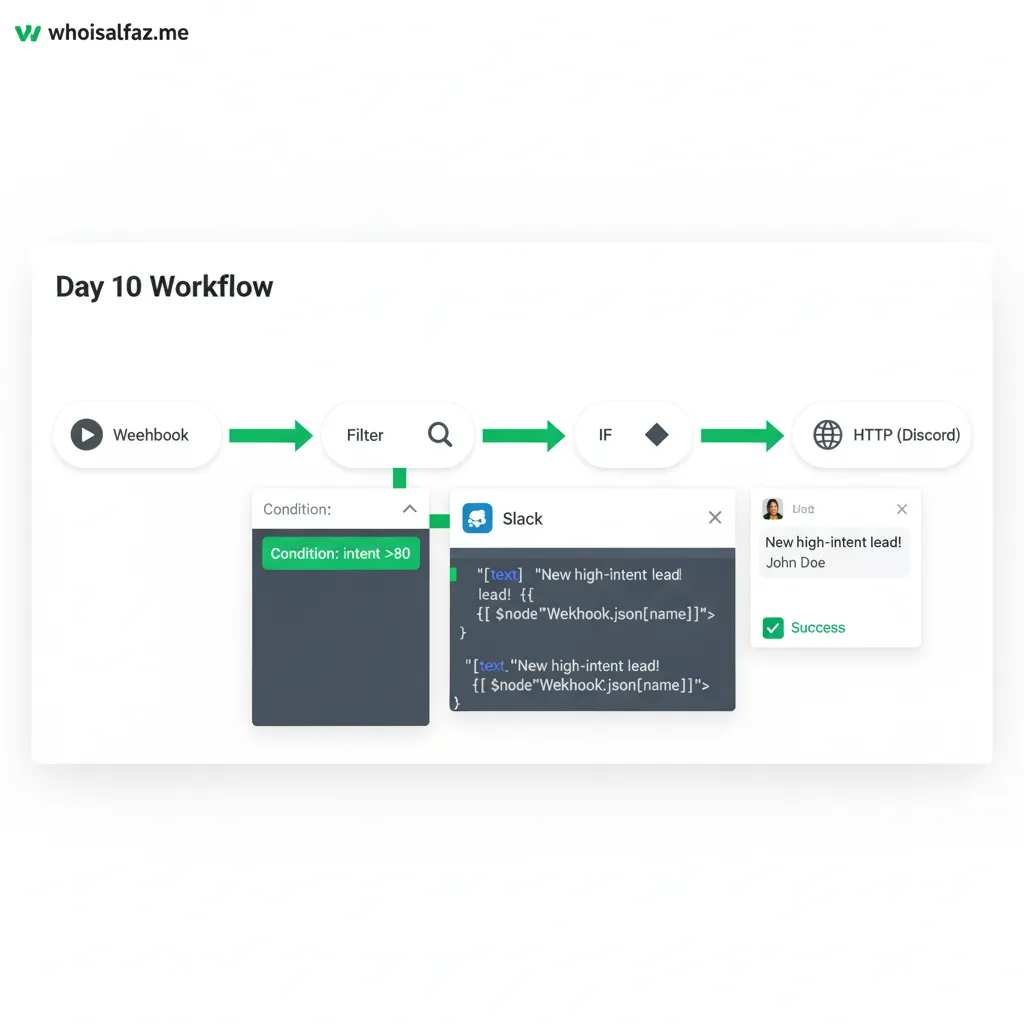
Real-World Example: whoisalfaz.me Lead Pipeline
At whoisalfaz.me, this n8n Slack notifications workflow powers our affiliate lead gen. A Typeform on pricing page → Webhook → Filter (intent >85) → Slack #affiliates + Brevo email.
Results: Caught a $5K agency client who submitted at midnight. Without it? Lost in email.
Customization for you:
- SaaS: Integrate with HubSpot API for score pull.
- Agencies: Route by client ID (e.g., Slack to #clientX).
- Solo: Swap Slack for Discord personal server.
Common pitfalls:
- Forgotten auth tokens—regenerate monthly.
- Payload mismatches—always validate JSON first with Code node.
- Rate limits—add Wait node (1s) between channels.
Tweak for your stack: Link to Day 3 on n8n Typeform integration.
Checklist: Deploy Your n8n Slack Notifications Today
Tick these off for a live system in 30 minutes:
- Install n8n (Docker on Digital Ocean, $6/mo).
- Create Slack app → Get bot token (guide).
- Build/test Webhook + Filter + Slack nodes.
- Set intent threshold (start at 80).
- Add Discord/Sheets backup.
- Point form to webhook URL.
- Monitor first 10 alerts—adjust filter.
- Export JSON as backup.
Done? You’ve automated lead alerts better than 90% of SaaS tools.
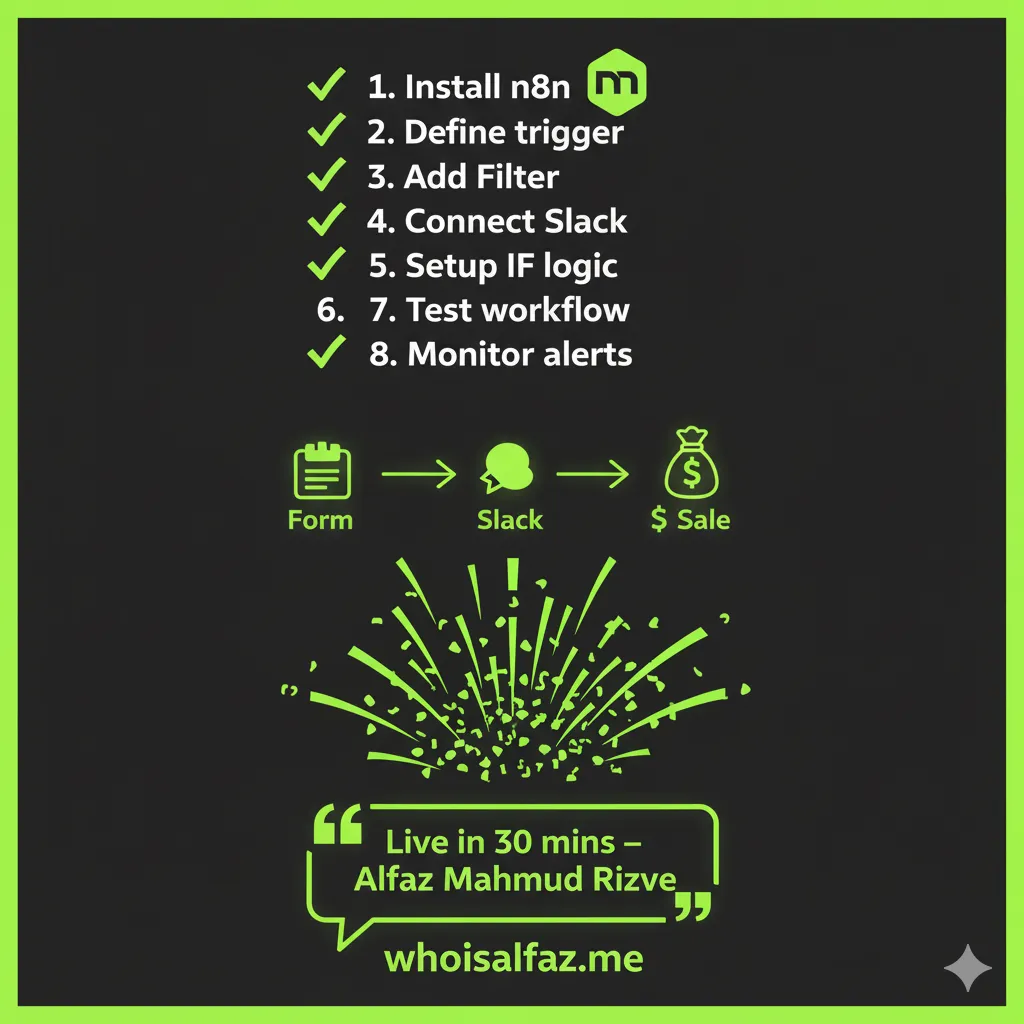
Day 10 in the 30 Days of n8n & Automation Series
This fits perfectly after Day 9’s error workflows—now your alerts are bulletproof. Catch up on the full series at .n8n automation
Tomorrow (Day 11): n8n CRM auto-sync for converted leads. Subscribe to stay ahead.
Ready to Never Miss a Lead Again?
Copy the workflow, deploy it, and reply in comments: “Day 10 live—what’s your intent threshold?” Alfaz Mahmud Rizve and the whoisalfaz.me team read every one.
Subscribe to the newsletter for Day 11 + exclusive n8n templates. Automate smarter—your ROI awaits.